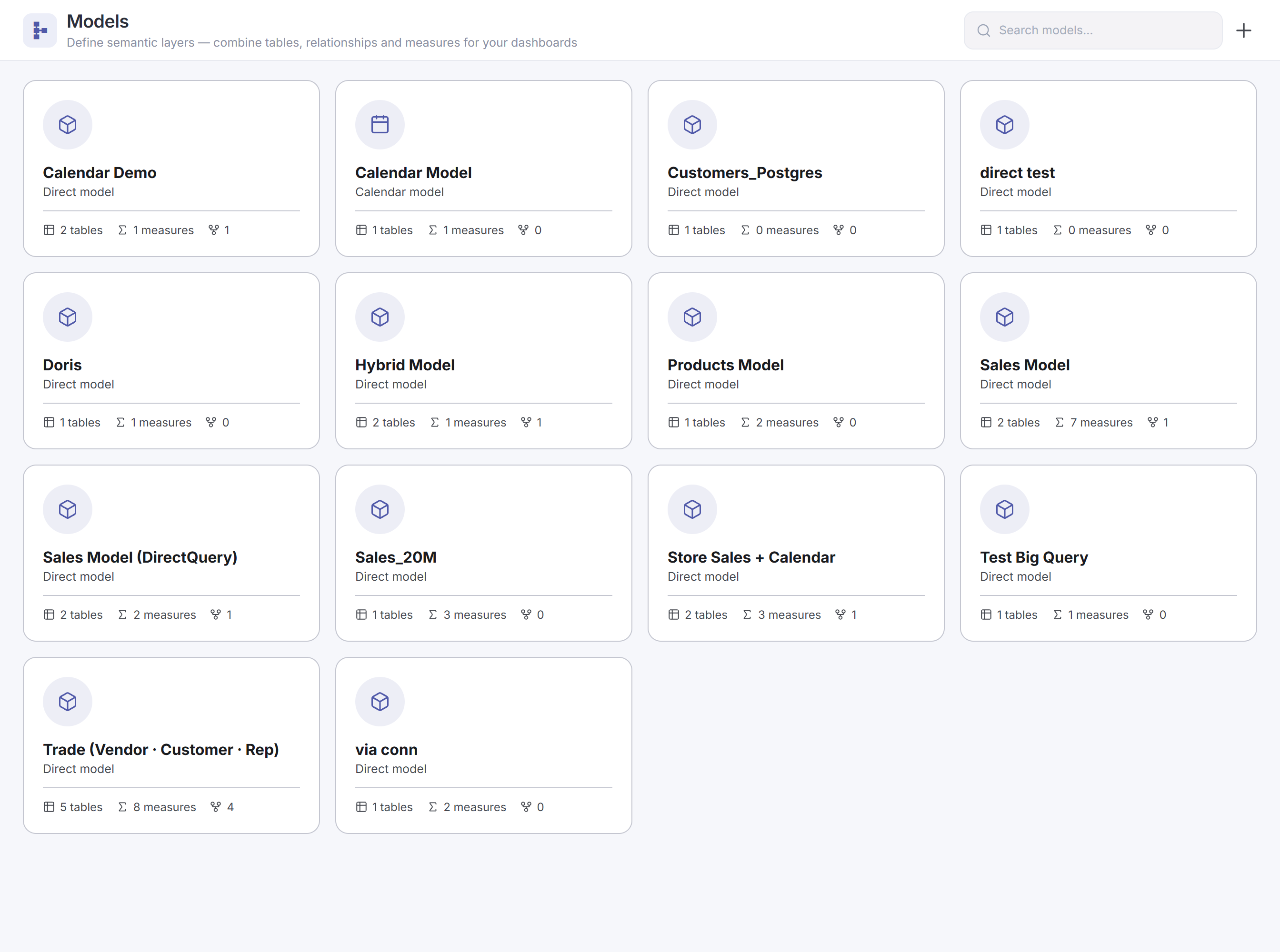
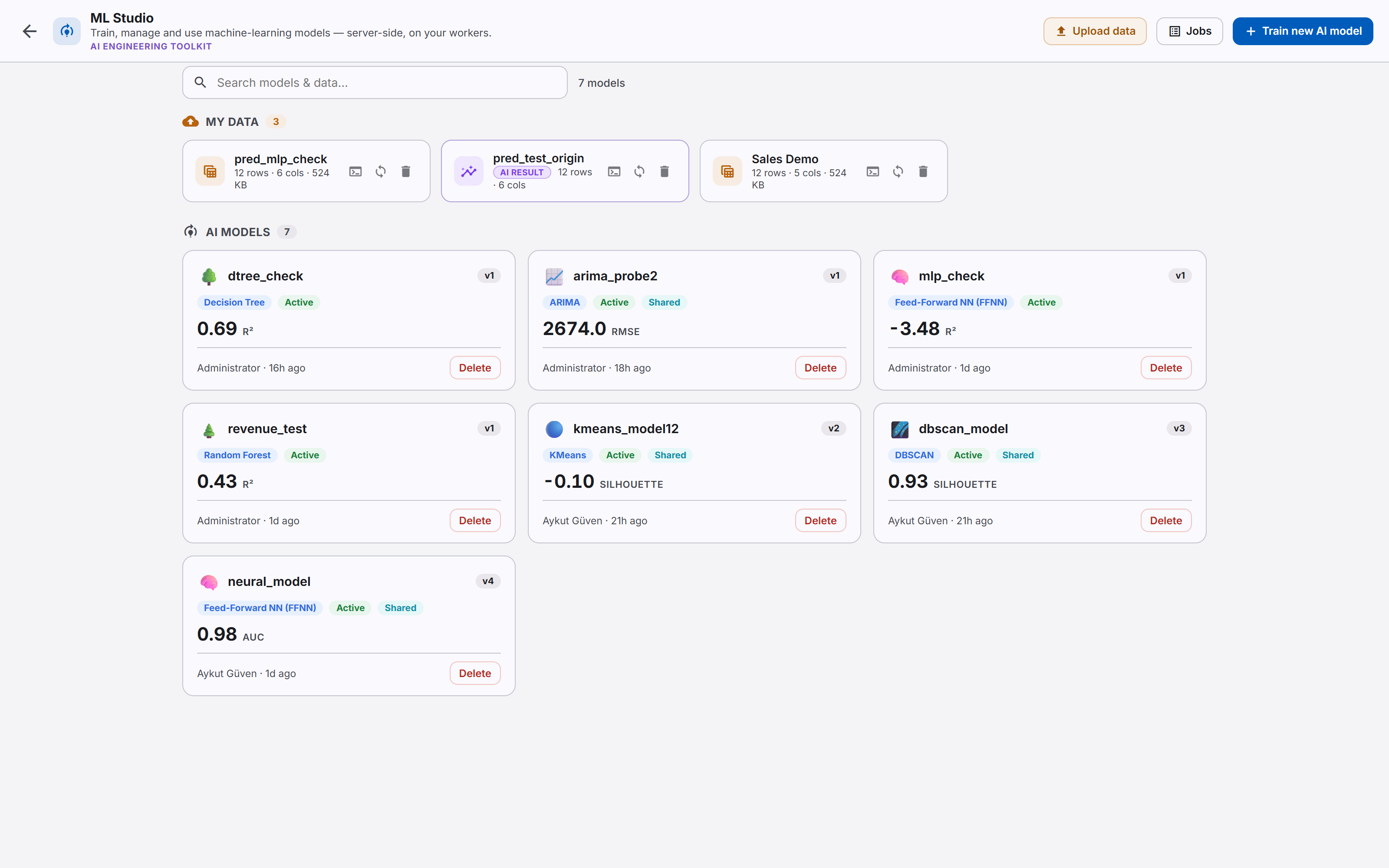
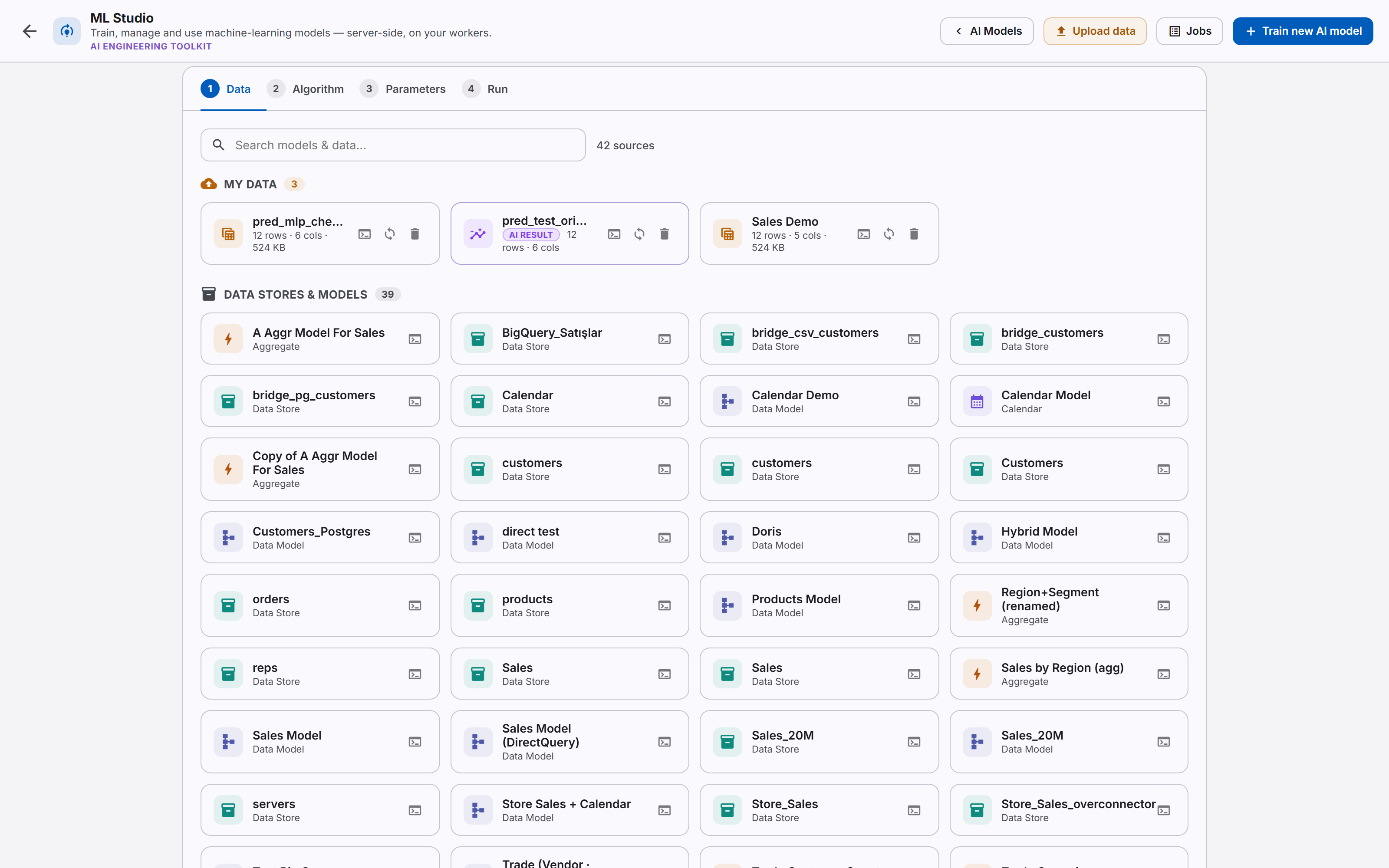
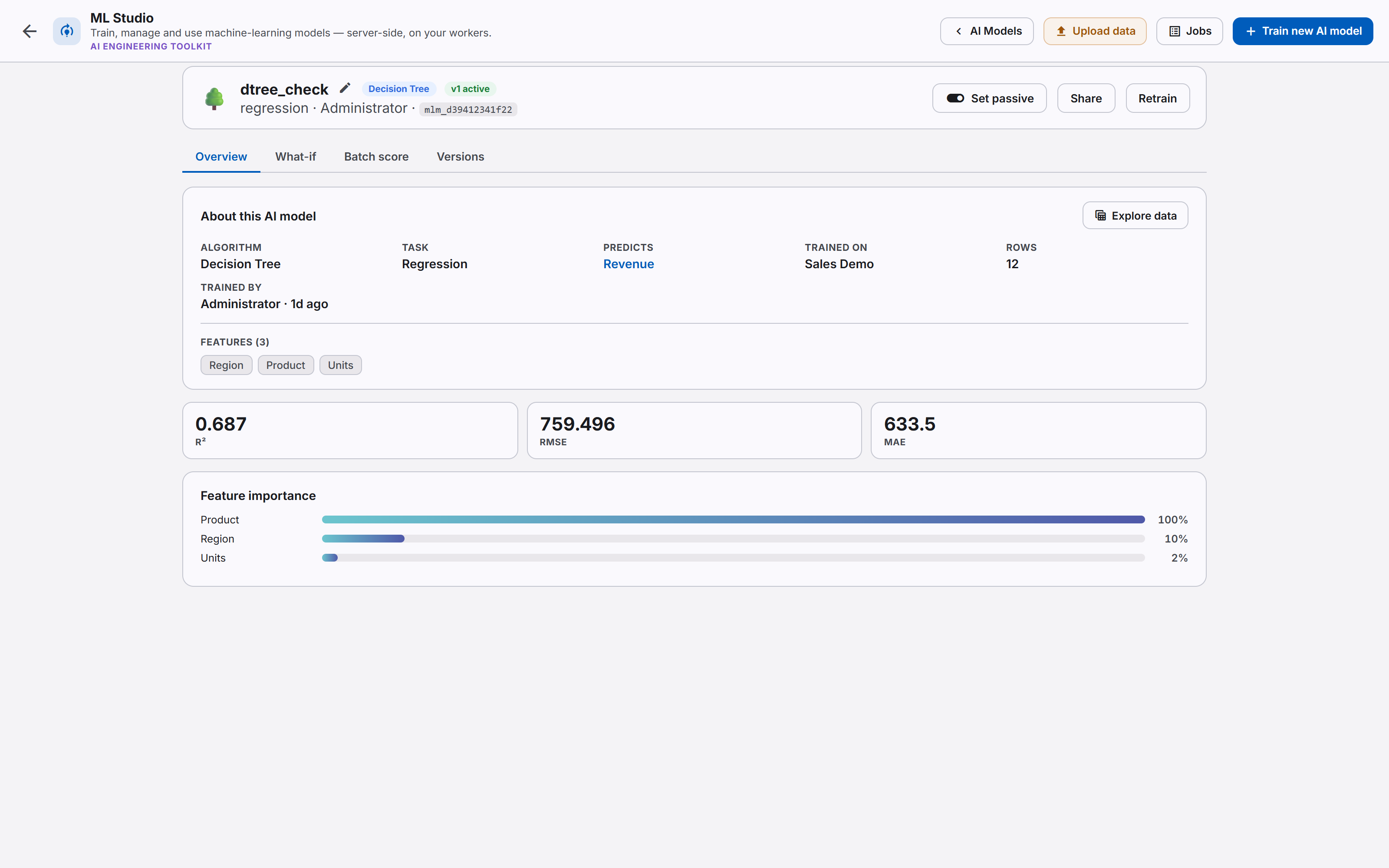
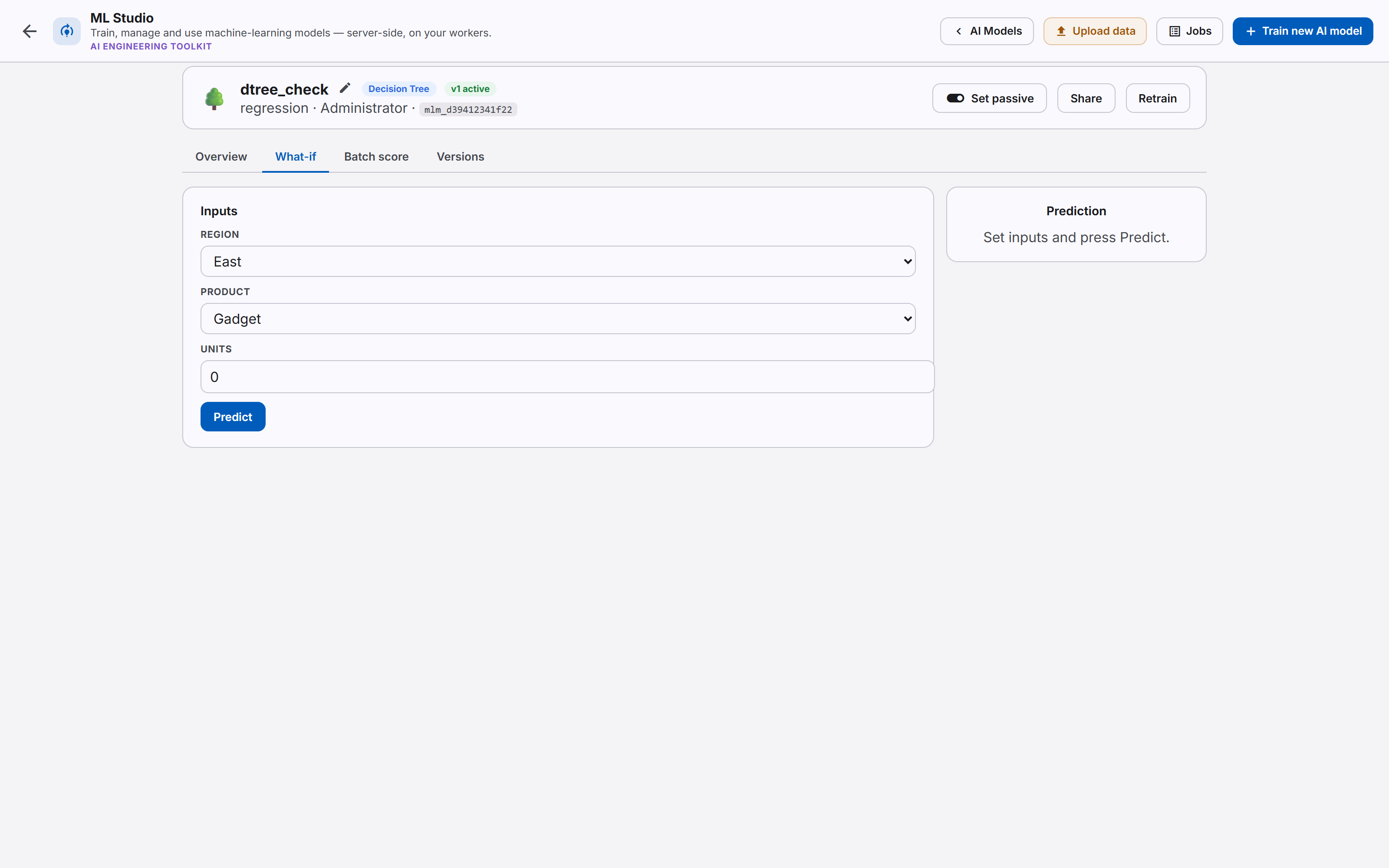
Bussion Yönetim KılavuzuManagement Guide
Bussion sayfasıBussion page

Bussion Analytics · Yönetim Paneli KılavuzuBussion Analytics · Management Panel Guide

Bussion Yönetim PaneliBussion Management Panel

Bussion Analytics'i yönetmek ve yapılandırmak için kullanılan yönetici panelinin adım adım kılavuzu.A step-by-step guide to the admin panel used to manage and configure Bussion Analytics.

Giriş — Yönetim PaneliIntroduction — Management Panel

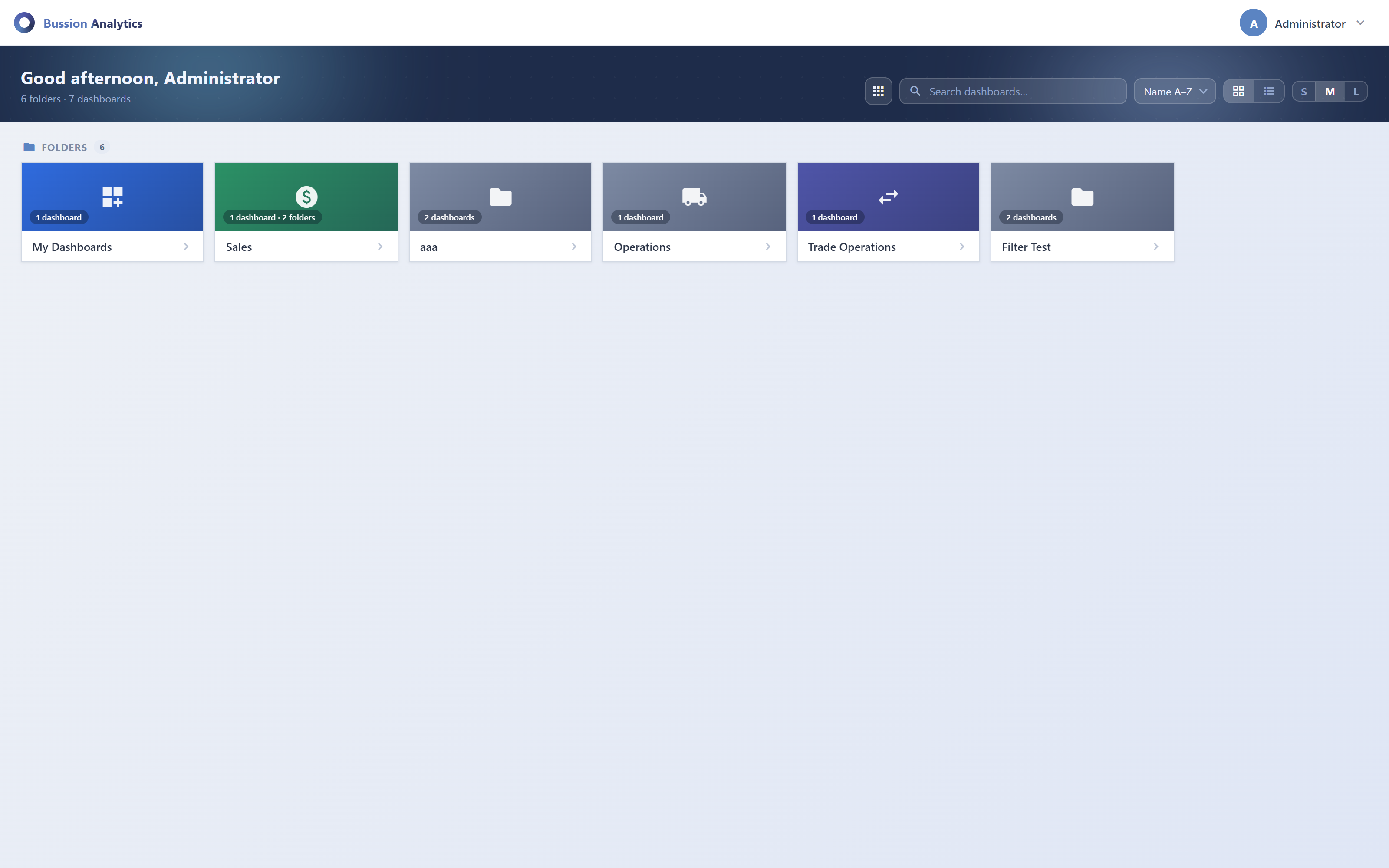
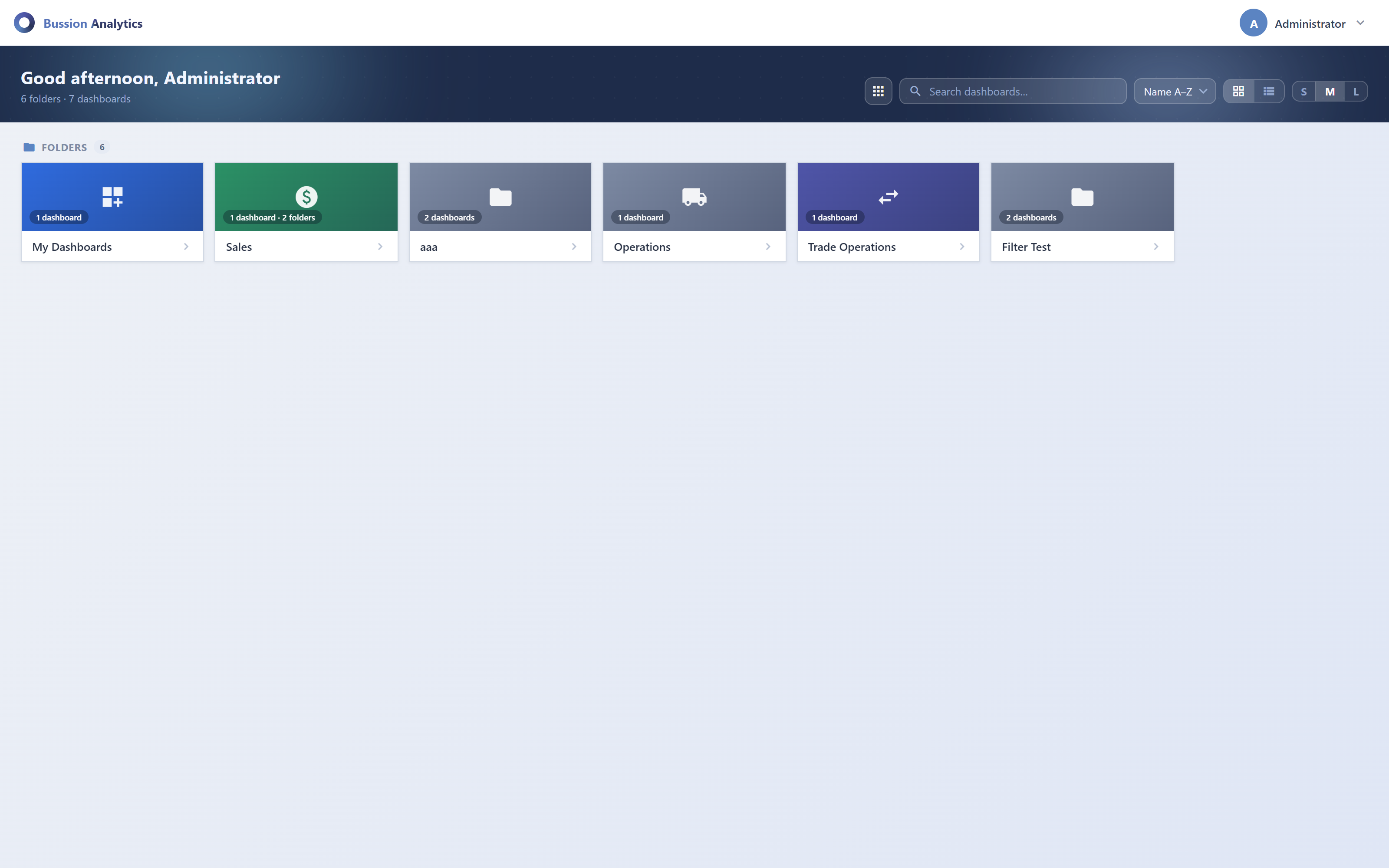
Bussion Analytics yönetici hesabıyla giriş yaptığınızda sizi bir karşılama (landing) sayfası karşılar. Solda, yöneticinin sistemi uçtan uca yapılandırdığı modüller bulunur; sağ üstte uygulama geçişi (◳) ve kullanıcı menüsü yer alır. "You can configure your Bussion using functions at the left handside" notu, tüm yapılandırmanın soldaki menüden yapıldığını söyler.When you sign in with a Bussion Analytics admin account, a landing page greets you. On the left are the modules the admin uses to configure the whole system end to end; the top-right has the app switcher (◳) and the user menu. The note "You can configure your Bussion using functions at the left handside" tells you all configuration happens from the left menu.

Bussion Management Panel landing
Görsel henüz eklenmedi — assets/docs/bussion-landing.pngImage not added yet — assets/docs/bussion-landing.png
Şekil 1.Figure 1. Yönetim Paneli karşılama ekranı: üstte Bussion logosu + uygulama geçişi/kullanıcı menüsü; solda yapılandırma modülleri (menü kaydırılır); ortada karşılama mesajı.The Management Panel landing: the Bussion logo + app switcher/user menu on top; the configuration modules on the left (the menu scrolls); a welcome message in the middle.

Yönetim Modülleri (genel bakış)Management Modules (overview)

Sol menüdeki modüller, bir Bussion sistemini kurmak ve işletmek için gereken her şeyi kapsar. Aşağıda hepsinin kısa tanımı var; ilerleyen bölümlerde her biri ekran görüntüleriyle ayrıntılı anlatılacaktır.The left-menu modules cover everything needed to set up and run a Bussion system. Below is a short description of each; the following sections will detail every one with screenshots.

ModülModuleNe içinUsed for
👤 UsersKullanıcı hesapları — kimlik, erişim ve oturum yönetimi.User accounts — identity, access and session management.
👥 GroupsKullanıcı grupları — toplu yetki ve görünürlük yönetimi.User groups — bulk permissions and visibility.
🧰 RolesRol tanımları — neyin yapılabileceğini belirleyen izin kümeleri.Role definitions — permission sets governing what can be done.
⋔ NodeNode/işleme düğümleri yapılandırması.Node/processing configuration.
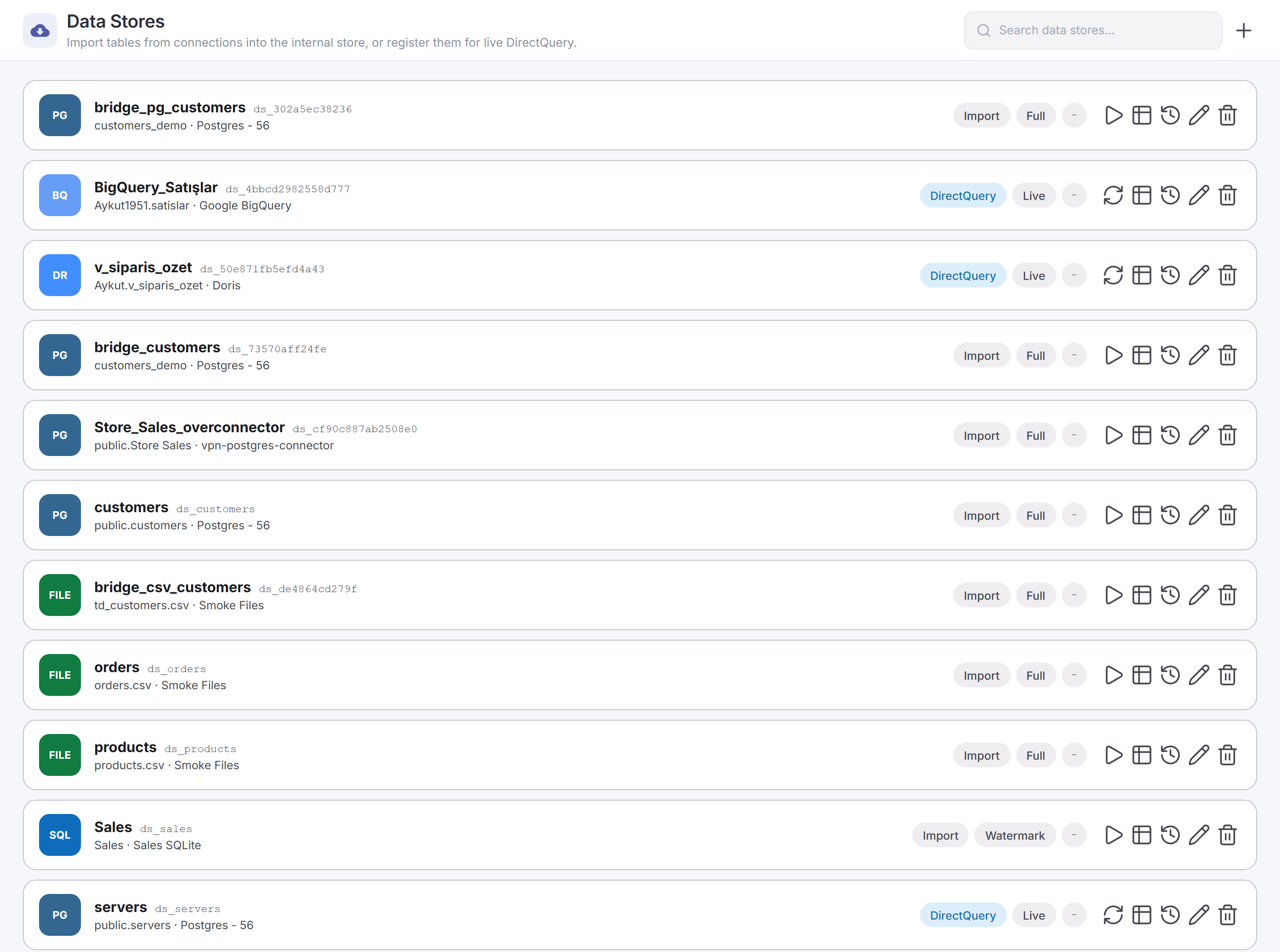
🗄 Data StoreVerinin saklandığı depo/katman yönetimi.Management of the store/layer where data is kept.
▦ Widget LibraryYeniden kullanılabilir widget'ların kütüphanesi.A library of reusable widgets.
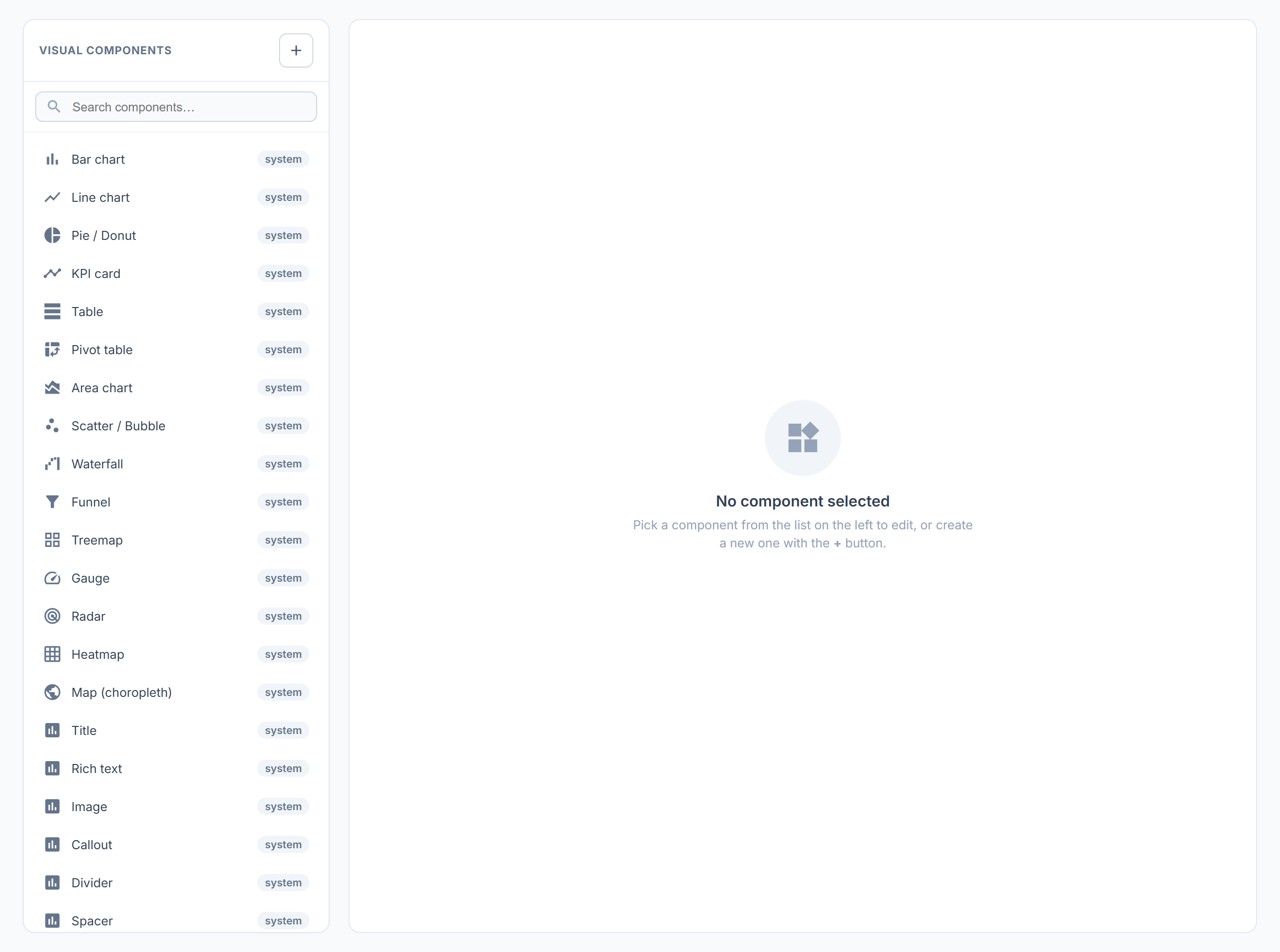
📊 Visual ComponentGörselleştirme bileşenleri (grafik/tablo vb.).Visualization components (charts/tables, etc.).
▤ DashboardPano (dashboard) tasarımı ve yönetimi.Dashboard design and management.
⊞ ApplicationsPanoların/içeriklerin uygulama olarak paketlenmesi.Packaging dashboards/content as applications.
ƒ Global FunctionSistem genelinde kullanılan ortak (JS) fonksiyonlar.Shared (JS) functions used across the system.
✸ Data ConnectionsDış veri kaynaklarına bağlantılar.Connections to external data sources.
🎫 LicenseLisans anahtarı ve kapsam yönetimi.License key and scope management.
🔗 LDAP ConfigLDAP/dizin tabanlı kimlik entegrasyonu.LDAP/directory-based identity integration.
🛡 Password PolicyParola kuralları — uzunluk, karmaşıklık, geçerlilik süresi.Password rules — length, complexity, expiry.
🎨 Color PaletteArayüz ve görselleştirmelerde kullanılan renk paleti tanımları.Color palette definitions used in the UI and visualizations.
📄 ScriptsÖzel betikler (ör. başlangıç/dönüşüm işlemleri).Custom scripts (e.g. startup/transform tasks).
🗂 LogsSistem log kayıtları ve izleme.System logs and monitoring.
⚙ System ParametersGenel sistem ayarları ve parametreleri.Global system settings and parameters.

1 · Users (Kullanıcılar)

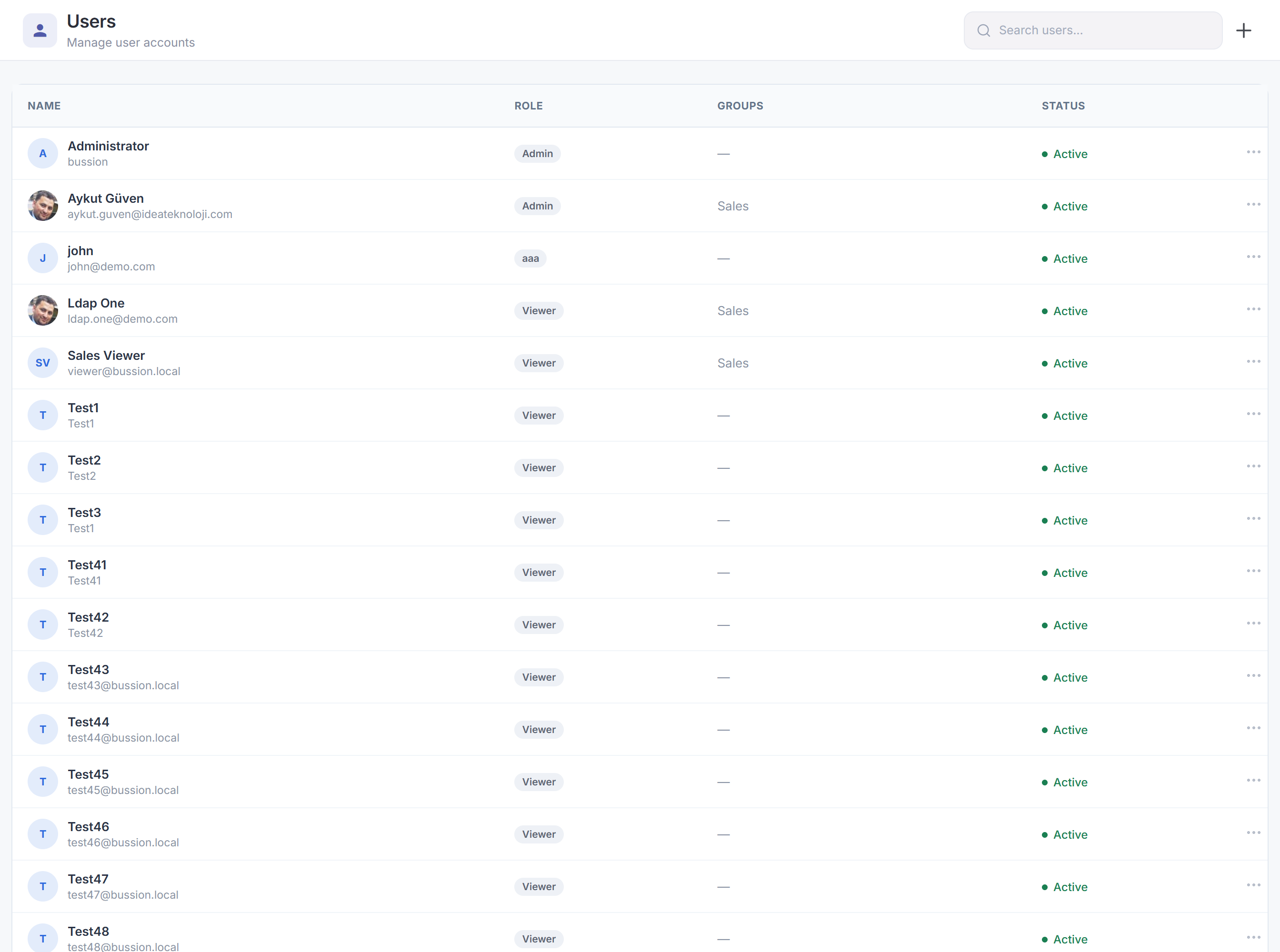
Soldaki Users modülü, sisteme giriş yapan kullanıcı hesaplarını yönetir. Açılışta bir kullanıcı listesi gelir; bir kayda tıklayınca o kullanıcının formu açılır, sağ üstteki Add New User ile yeni kullanıcı eklenir.The left-menu Users module manages the accounts that sign in to the system. It opens with a user list; clicking a row opens that user's form, and Add New User (top right) creates a new one.

Kullanıcı listesiUser list

Liste, kullanıcıları bir tabloda gösterir. Üstteki Add New User butonu yeni kayıt açar; arama kutusu (Ex. Jack) ada göre süzer.The list shows users in a table. The Add New User button creates a new record; the search box (Ex. Jack) filters by name.

Users Add New User ⊕ Ex. Jack AvatarUser IdFirst NameLast NameEmailLast LoginAction AY 8135417624326431AhmetYılmazahmet.yilmaz@example.com2026-06-14 09:06🗑 ED 6858316524526168ElifDemirelif.demir@example.com2026-06-12 14:38🗑 MK 5746827884724412MertKayamert.kaya@example.com2026-06-13 16:05🗑 SA 5154134756382622SelinAksoyselin.aksoy@example.com2026-06-13 16:06🗑 7822143417426477CanÖztürkcan.ozturk@example.com2026-06-10 15:49🗑
Şekil 2.Figure 2. Users listesi: Avatar · User Id · First Name · Last Name · Email · Last Login · Action sütunları. Add New User yeni kayıt açar; 🗑 ile silinir; satıra tıklayınca kullanıcı formu açılır. (Örnek veriler kurgusaldır.)The Users list: columns Avatar · User Id · First Name · Last Name · Email · Last Login · Action. Add New User creates a record; 🗑 deletes; clicking a row opens the user form. (Sample data is fictional.)
SütunColumnAnlamMeaning
AvatarKullanıcının profil resmi (yoksa baş harfleri).The user's profile picture (initials if none).
User IdSistemin atadığı benzersiz kimlik.The unique id assigned by the system.
First / Last NameAd ve soyad.First and last name.
EmailGiriş ve iletişim e-postası.Sign-in and contact email.
Last LoginSon giriş zamanı.Last sign-in time.
Action🗑 kaydı siler.🗑 deletes the record.

Kullanıcı formu (Add / Update User)User form (Add / Update User)

Bir satıra tıklayınca (veya Add New User ile) açılan formdur. Uzundur; üç bölümden oluşur: About User (kimlik bilgileri), hesap ayarları ve User Groups / User Roles (yetki atamaları). Altta Cancel ve Update butonları bulunur.Opened by clicking a row (or via Add New User). It is long; it has three parts: About User (identity), account settings, and User Groups / User Roles (permission assignment). Cancel and Update buttons sit at the bottom.

Update User About User ED Name *Elif Surname *Demir Email *elif.demir@example.com Password Password(Again) LDAP Username Secret KeySECXY7E6VYSHUU2D LanguageEnglish ▾ User Main PageReset Account StatusActive ▾ Domain372561 Cancel Update
Şekil 3.Figure 3. Kullanıcı formu — About User (Name*, Surname*, Email*, Password, Password(Again), LDAP Username) ve hesap ayarları (Secret Key, Language, User Main Page + Reset, Account Status, Domain). * zorunlu alanları gösterir.User form — About User (Name*, Surname*, Email*, Password, Password(Again), LDAP Username) and account settings (Secret Key, Language, User Main Page + Reset, Account Status, Domain). * marks required fields.
AlanFieldAnlamMeaning
Name · Surname *Ad ve soyad (zorunlu).First and last name (required).
Email *Giriş e-postası (zorunlu, benzersiz).Sign-in email (required, unique).
Password · Password(Again)Parola belirleme/sıfırlama; boş bırakılırsa değişmez.Set/reset the password; leave blank to keep it unchanged.
LDAP UsernameLDAP/dizin ile eşleşen kullanıcı adı (LDAP girişine bağlı).The username matched in LDAP/directory (for LDAP sign-in).
Secret KeyGoogle Authenticator ile giriş için üretilmiş kişiye özel kimliktir. Bu anahtar Google Auth uygulamasına tanımlanır ve kullanıcı sisteme OTP (tek kullanımlık kod) ile giriş yapabilir (iki adımlı doğrulama).A per-user secret generated for signing in with Google Authenticator. Register it in the Google Auth app and the user can sign in with an OTP (one-time password) — two-factor authentication.
LanguageKullanıcının arayüz dili (ör. English).The user's UI language (e.g. English).
User Main PageGirişte açılacak varsayılan pano/sayfa; Reset ile sıfırlanır.The default dashboard/page shown at sign-in; Reset clears it.
Account StatusHesap durumu (ör. Active) — pasif/kilitli yapılabilir.Account status (e.g. Active) — can be set passive/locked.
DomainKullanıcının bağlı olduğu kiracı/alan kimliği (salt-okunur).The tenant/domain id the user belongs to (read-only).

User Groups

Formun alt kısmında kullanıcının grup üyelikleri seçilir: aranabilir, sayfalanabilir bir liste; işaretli gruplar kullanıcıya atanır. Hemen altında User Roles (rol atamaları) gelir.Lower in the form you pick the user's group memberships: a searchable, paginated checklist; ticked groups are assigned to the user. User Roles (role assignment) follows right below.

User Groups Search Admin Analysts Sales Team Finance Operations « 1 »
Şekil 4.Figure 4. User Groups: aranabilir, sayfalı grup listesi; işaretli gruplar (Admin, Analysts, Sales Team) kullanıcıya atanır. Altında User Roles bölümü gelir. (Grup adları örnektir.)User Groups: a searchable, paginated group list; ticked groups (Admin, Analysts, Sales Team) are assigned to the user. User Roles follows below. (Group names are examples.)

2 · Groups (Gruplar)

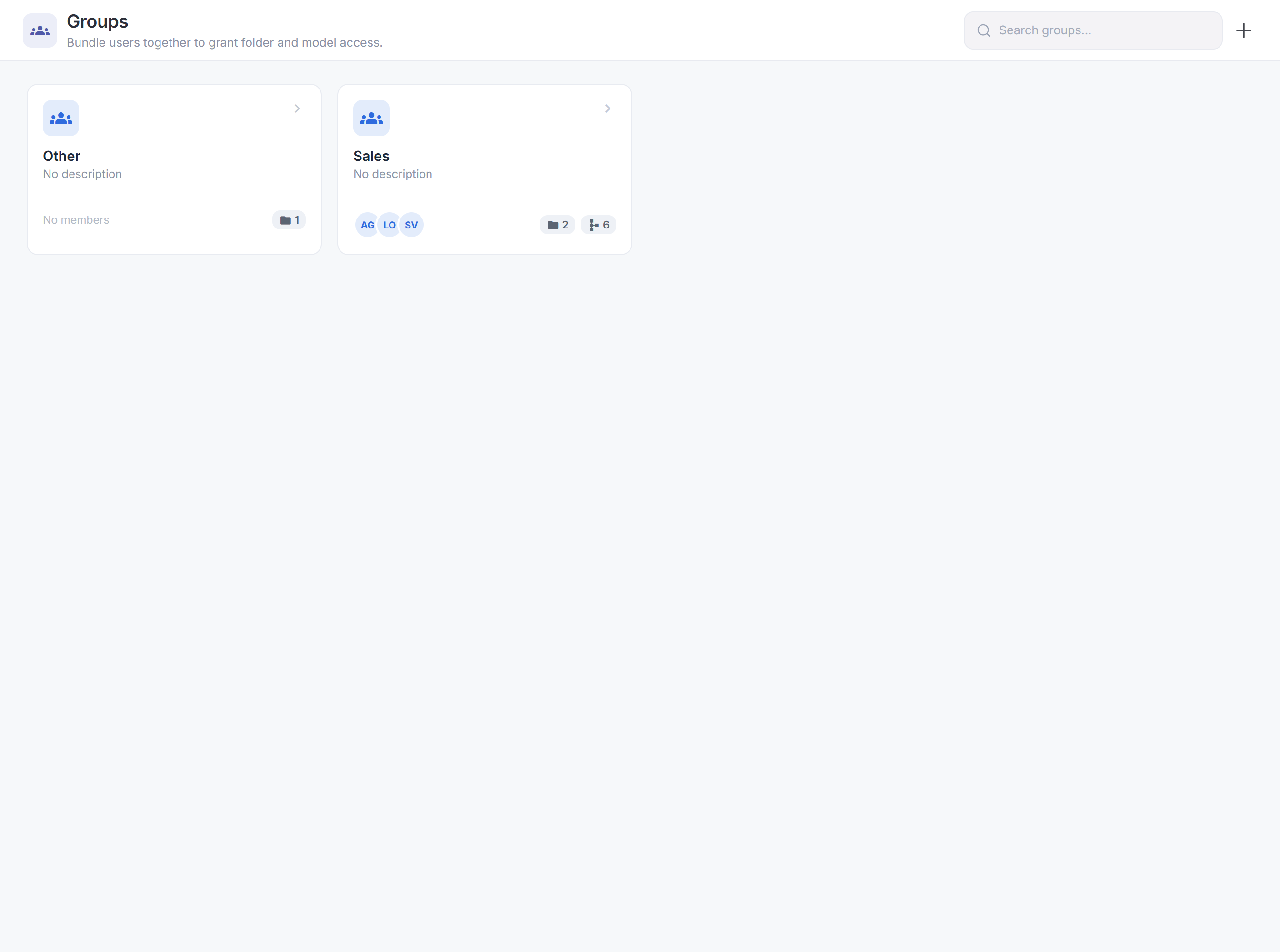
Groups modülü kullanıcıları bir araya getirir ve yetkinin merkezi burasıdır. Bir grup; üyelerinin hangi dashboard ve uygulamaları göreceğini, hangi veri kaynaklarına erişeceğini belirler. Ayrıca sistemdeki verinin satır ve sütun bazlı yetkilendirmesi de gruplarla yapılır: grup bazlı filtreler tanımlanarak üyelerin yalnız o kritere uyan veriyi görmesi sağlanır.The Groups module brings users together and is the center of authorization. A group decides which dashboards and applications its members see and which data sources they can access. It is also where row- and column-level data authorization is done: group-based filters restrict members to only the data matching that criterion.

⭐ Grup = yetkilendirmenin merkezi⭐ The group is the center of authorization Bussion'da erişimi kullanıcıya tek tek değil, gruba verirsiniz. Bir gruba dashboard'lar + veri kaynakları + filtreler tanımlar, kullanıcıları o gruba üye yaparsınız. Aynı kullanıcı birden çok grupta olabilir; gördükleri bu grupların birleşimidir. In Bussion you grant access to a group, not to each user. You attach dashboards + data sources + filters to a group and add users as members. A user can belong to multiple groups; what they see is the union of those groups.

Grup listesiGroup list

Groups Add New Group ⊕ Ex. Sales PictureGroup NameGroup IdDescriptionCreated ByOrderAction A Admin6623638137278822AdminAhmet Yılmaz-🗑 SA Sales Analysts8631172187643134Elif Demir-🗑 OA Operations Analytics5588641623555662To see what's happening…Elif Demir0🗑 FI Finance Insights4325322148442723Mert Kaya-🗑 RM Regional Managers5772327138862815Drilldown analytics…Mert Kaya0🗑
Şekil 5.Figure 5. Groups listesi: Picture · Group Name · Group Id · Description · Created By · Order · Action. Add New Group yeni grup açar; satıra tıklayınca grup formu açılır. (Örnek veriler kurgusaldır.)The Groups list: Picture · Group Name · Group Id · Description · Created By · Order · Action. Add New Group creates a group; clicking a row opens the group form. (Sample data is fictional.)

Grup formu — About GroupGroup form — About Group

Bir gruba tıklayınca (veya Add New Group ile) açılan form çok bölümlüdür. İlk bölüm About Group grubun temel ayarlarıdır:Clicking a group (or Add New Group) opens a multi-part form. The first part, About Group, holds the group's basic settings:

Update Group About Group Name *Sales Analysts Description Show In App View User Main PageReset User Self Registration Cancel Update
Şekil 6.Figure 6. About Group: Name*, Description, Show In App View (uygulama görünümünde listele), User Main Page (üyelerin açılış panosu) + Reset, User Self Registration (kullanıcı kendi kaydını yapabilsin).About Group: Name*, Description, Show In App View (list in the app view), User Main Page (members' landing dashboard) + Reset, User Self Registration (allow self sign-up).
AlanFieldAnlamMeaning
Name *Grup adı (zorunlu).Group name (required).
DescriptionGrubun amacını anlatan serbest açıklama.A free-text description of the group's purpose.
Show In App ViewGrubun uygulama görünümünde (App View) listelenip listelenmeyeceği.Whether the group is listed in the App View.
User Main PageBu grubun üyeleri için varsayılan açılış panosu; Reset ile sıfırlanır.The default landing dashboard for this group's members; Reset clears it.
User Self RegistrationKullanıcıların bu gruba kendi kendine kayıt olabilmesine izin verir.Lets users self-register into this group.

Üyeler, Dashboard'lar ve Veri KaynaklarıMembers, Dashboards & Data Sources

Formun devamında grubun kim (üyeler), ne görecek (dashboard'lar) ve hangi veriye erişecek (veri kaynakları) tanımlanır. Üçü de aranabilir, sayfalı işaret listesidir.Further down, you define the group's who (members), what they see (dashboards) and which data they reach (data sources). All three are searchable, paginated checklists.

Members of Group Ahmet Yılmaz Elif Demir Mert Kaya Selin Aksoy Can Öztürk « 1 » Dashboard of GroupDrag Enable Sales Performance Operations Overview Regional Analysis Customer Behaviour Risk & Score Datasource of Group Sales Facts Customer Dim Audit Logs Region Dim Inventory
Şekil 7.Figure 7. Members of Group (üyeler) · Dashboard of Group (görülecek panolar; Drag Enable ile sıra) · Datasource of Group (erişilecek veri kaynakları). İşaretlenenler gruba atanır. (Örnek veriler kurgusaldır.)Members of Group · Dashboard of Group (visible dashboards; Drag Enable to order) · Datasource of Group (accessible data sources). Ticked items are assigned to the group. (Sample data is fictional.)
BölümSectionAnlamMeaning
Members of GroupGruba dahil kullanıcılar (aranabilir, sayfalı).Users in the group (searchable, paginated).
Dashboard of GroupÜyelerin göreceği panolar; Drag Enable ile sıralanır.Dashboards members will see; ordered via Drag Enable.
Datasource of GroupGrubun erişebileceği veri kaynakları.The data sources the group can access.

Filter for Dashboard — satır/sütun yetkilendirmeFilter for Dashboard — row/column authorization

Grubun en güçlü yetki aracı budur: grup bazlı filtreler tanımlayarak üyelerin yalnız belirli kritere uyan satırları görmesini sağlarsınız (satır-seviyesi güvenlik). + Add New Filter sabit bir koşul ekler; + Add Dynamic Filter oturumdaki kullanıcıya göre değişen (ör. kendi bölgesi) bir koşul ekler. Her filtre Field · Operator · Value'dan oluşur.This is the group's most powerful authorization tool: by defining group-based filters you restrict members to only the rows matching a criterion (row-level security). + Add New Filter adds a fixed condition; + Add Dynamic Filter adds one that varies by the logged-in user (e.g. their own region). Each filter is Field · Operator · Value.

Filter for Dashboard + Add New Filter+ Add Dynamic Filter FieldOperatorValue Region = (equals) Marmara BranchId = (equals) oturumdaki kullanıcının şubesilogged-in user's branch Üst satır sabit filtre; alt satır (turuncu) dinamik filtre — oturumdaki kullanıcıya göre değişir.Top row is a static filter; the bottom (orange) is a dynamic filter — it changes per logged-in user. Sonuç: bu grubun üyeleri yalnız Marmara bölgesindeki ve kendi şubelerinin verisini görür.Result: members of this group see only Marmara-region data for their own branch.
Şekil 8.Figure 8. Filter for Dashboard: grup bazlı satır-seviyesi yetkilendirme. + Add New Filter sabit koşul, + Add Dynamic Filter kullanıcıya göre değişen koşul ekler (Field · Operator · Value).Filter for Dashboard: group-based row-level authorization. + Add New Filter adds a static condition, + Add Dynamic Filter adds a per-user condition (Field · Operator · Value).
Satır vs sütunRow vs columnSatır yetkilendirme filtrelerle yapılır (yukarıda). Sütun/veri yetkilendirme ise Datasource of Group ile yapılır: grup yalnız kendisine atanmış veri kaynaklarını/alanları görebilir. İkisi birlikte uçtan uca veri güvenliği sağlar.Row authorization is done with filters (above). Column/data authorization is done via Datasource of Group: a group only sees the data sources/fields assigned to it. Together they provide end-to-end data security.

3 · Roles (Roller)

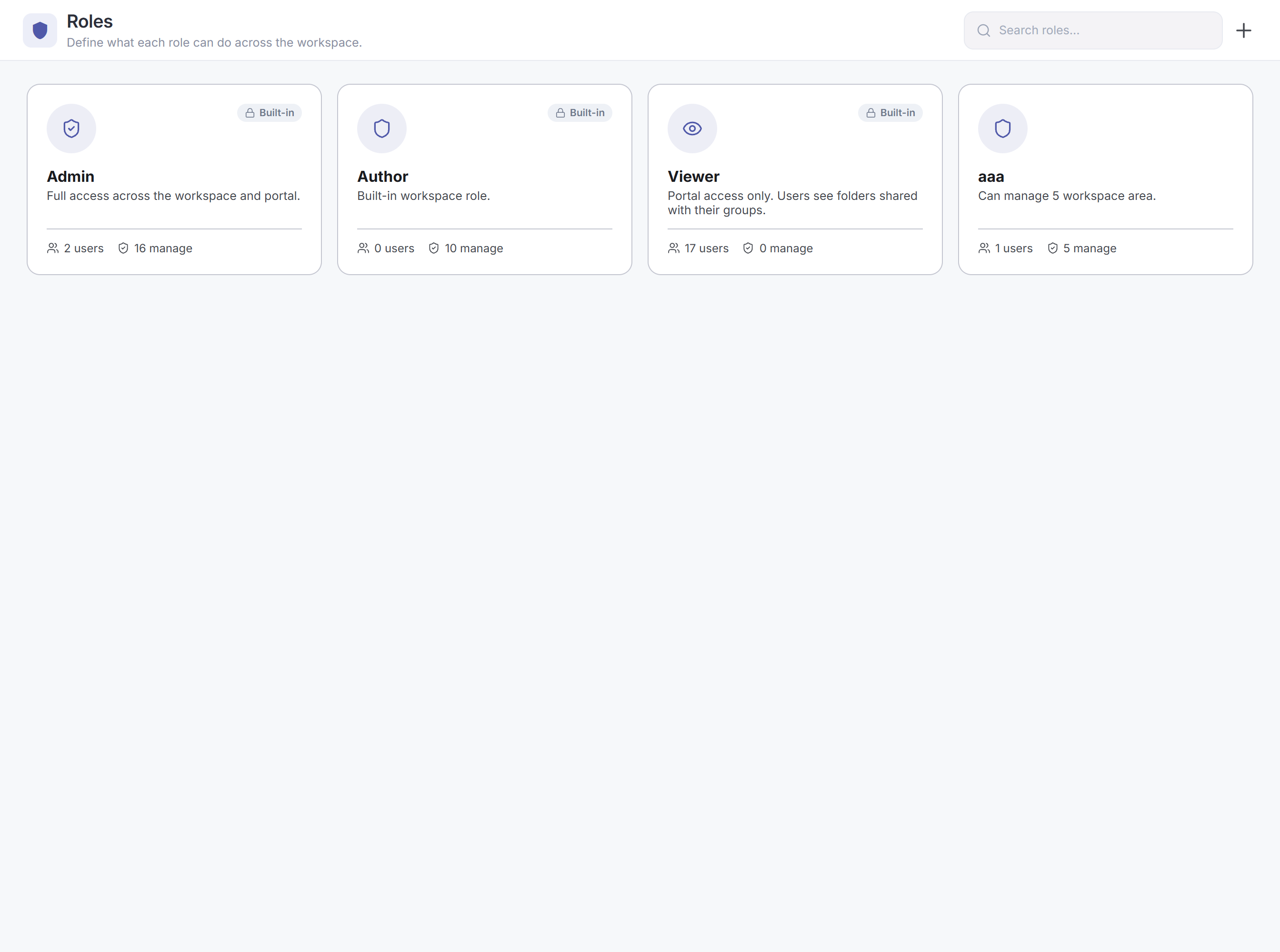
Roles modülü, kullanıcıların sistemde ne yapabileceğini belirleyen izin kümeleridir. Bir kullanıcının erişim yetkisi, üye olduğu rolün Permissions'larına göre oluşur. Admin, Editor ve Viewer yerleşik (built-in) rollerdir ve düzenlenemez; ihtiyaca göre Add New Role ile yeni roller eklenir.The Roles module defines permission sets that govern what users can do in the system. A user's access comes from the Permissions of the role they belong to. Admin, Editor and Viewer are built-in roles and can't be edited; add more as needed with Add New Role.

⭐ Rol = ne yapabilir (Groups = ne görebilir)⭐ Role = what you can do (Groups = what you can see) Roles sistemdeki yetenekleri/izinleri (ör. dashboard tasarlama, kullanıcı yönetme) verir; Groups ise hangi dashboard/veriye erişileceğini belirler. İkisi birlikte tam erişim modelini oluşturur. Roles grant capabilities/permissions (e.g. design dashboards, manage users); Groups decide which dashboards/data are reachable. Together they form the full access model.

Rol listesiRole list

Roles Add New Role ⊕ Ex. Admin Role NameRole IdDescriptionAction Admin25557853128845887727Built-in Administrator role can not be edited🗑 Editor31652263876142225478Built-in Editor role can not be edited🗑 Tester58138377852811432742🗑 Viewer85456166216426748431Built-in Viewer role can not be edited🗑 Items per page: 10 · 1–4 of 4
Şekil 9.Figure 9. Roles listesi: Role Name · Role Id · Description · Action. Admin · Editor · Viewer yerleşik rollerdir (düzenlenemez); Add New Role ile yeni rol eklenir.The Roles list: Role Name · Role Id · Description · Action. Admin · Editor · Viewer are built-in (not editable); Add New Role adds a new role.

Rol formu — About Role · Permissions · MembersRole form — About Role · Permissions · Members

Bir role tıklayınca açılan form üç bölümdür: About Role (ad/açıklama), Permissions of Role (role atanan izinler) ve Members of Role (role dahil kullanıcılar). İkisi de aranabilir, sayfalı işaret listesidir.Clicking a role opens a three-part form: About Role (name/description), Permissions of Role (the permissions granted to the role) and Members of Role (the users in the role). Both are searchable, paginated checklists.

Update Role About Role Name *Admin DescriptionBuilt-in Administrator role can not be edited Permissions of Role AIAdmin AIUser ApplicationManagement BussionConnectorManagement … (toplam 36 izin) Members of Role Ahmet Yılmaz Elif Demir Mert Kaya Selin Aksoy « 1 »
Şekil 10.Figure 10. Update Role: About Role (Name*, Description), Permissions of Role (role atanan izinler) ve Members of Role (role dahil kullanıcılar). (Üye verileri kurgusaldır.)Update Role: About Role (Name*, Description), Permissions of Role (permissions granted) and Members of Role (users in the role). (Member data is fictional.)

Permission listesi (36 izin)Permissions list (36 permissions)

Sistemdeki tüm izinler ve kısa anlamları. Bir role bu izinlerden hangileri işaretlenirse, o rolün üyeleri o yetkilere sahip olur.All permissions in the system and their meanings. Whichever of these are ticked on a role, that role's members gain those rights.

PermissionAnlamMeaning
Yönetim modülleriManagement modules
UserManagementKullanıcıları yönetme.Manage users.
GroupManagementGrupları yönetme.Manage groups.
RoleManagementRolleri yönetme.Manage roles.
ApplicationManagementUygulamaları yönetme.Manage applications.
NodeManagementNode'ları yönetme.Manage nodes.
LicenseManagementLisansı yönetme.Manage the license.
DataStoreManagementVeri deposunu yönetme.Manage the data store.
GlobalFunctionManagementGlobal fonksiyonları yönetme.Manage global functions.
GlobalParametersManagementSistem parametrelerini yönetme.Manage global parameters.
ColorPaletteManagementRenk paletini yönetme.Manage the color palette.
WidgetLibraryManagementWidget kütüphanesini yönetme.Manage the widget library.
VisualComponentManagementGörsel bileşenleri yönetme.Manage visual components.
BussionConnectorManagementVeri bağlantılarını (connector) yönetme.Manage data connectors.
Dashboard
DashboardDesignDashboard tasarlama.Design dashboards.
DashboardFilterDashboard filtreleri kullanma.Use dashboard filters.
DashboardMessageDashboard mesajları.Dashboard messages.
DashboardShareDashboard paylaşma.Share dashboards.
DashboardExportDashboard dışa aktarma.Export dashboards.
DashboardMailingDashboard e-posta gönderimi.Dashboard mailing.
Widget
WidgetShareWidget paylaşma.Share widgets.
WidgetExportWidget dışa aktarma.Export widgets.
Veri & Self-ServiceData & Self-Service
DataEngineerVeri mühendisliği yetkileri.Data engineering rights.
DataAnalyticsVeri analitiği yetkileri.Data analytics rights.
SelfServiceSelf-service raporlama.Self-service reporting.
Flow
FlowAdminAkış (flow) yönetimi.Flow administration.
FlowDesignerAkış tasarımı.Flow design.
AI & RaporAI & Report
AIAdminYZ yönetimi.AI administration.
AIUserYZ kullanımı.AI usage.
ChatBotChatBot erişimi.ChatBot access.
ReportAdminRapor yönetimi.Report administration.
Sistem & GüvenlikSystem & Security
SystemConfigurationSistem yapılandırması.System configuration.
SystemBackupRestoreYedekleme / geri yükleme.Backup & restore.
DebuggerHata ayıklama (debug) erişimi.Debugger access.
NoProfileChangeKullanıcının kendi profilini değiştirmesini engeller.Blocks the user from changing their own profile.
MaxTriesMaksimum hatalı giriş denemesi kuralı.Max failed-login attempts rule.
CaptchaCaptcha doğrulaması.Captcha verification.

4 · Node (Düğümler)

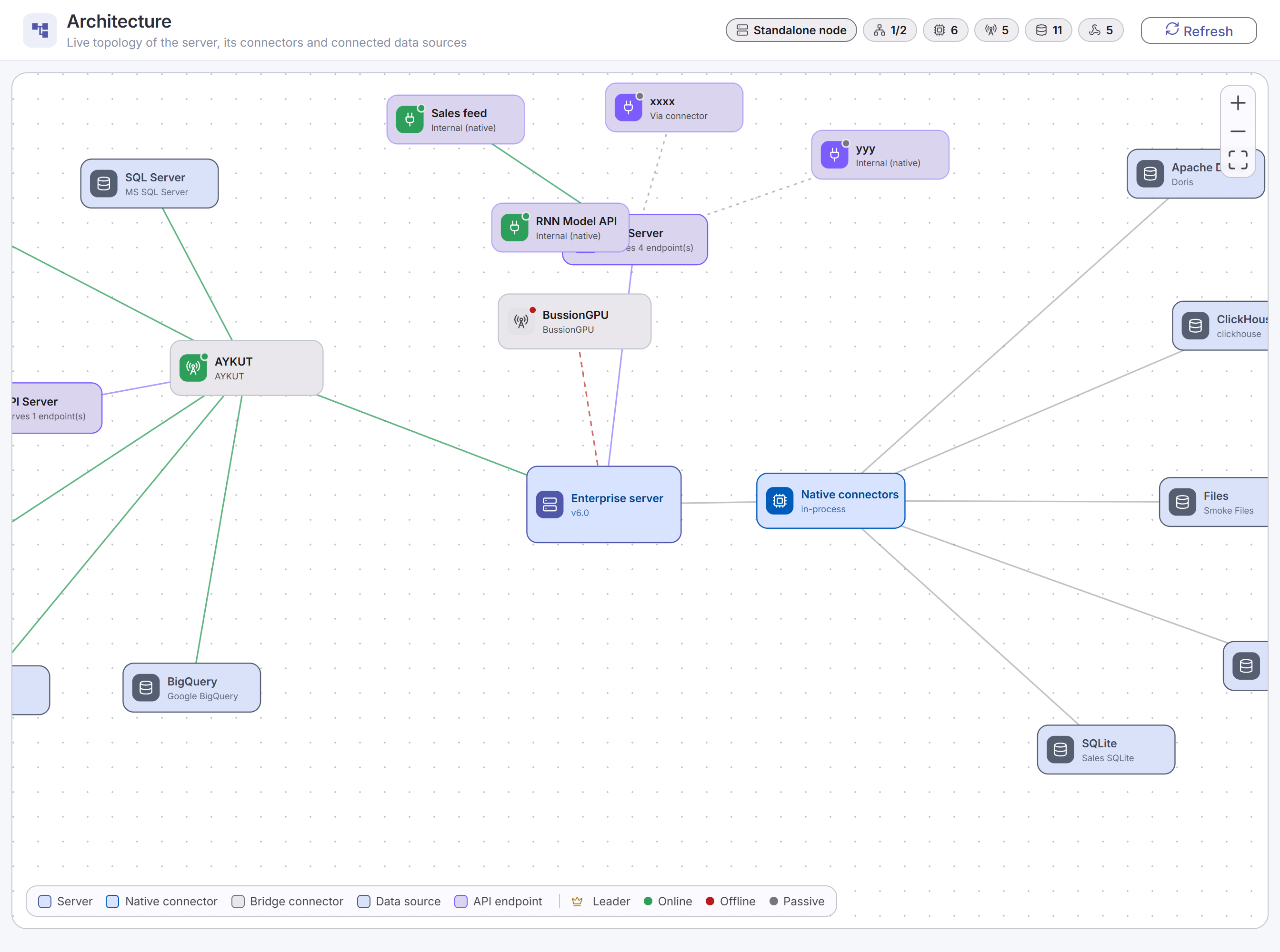
Bussion dağıtık bir mimaride çalışır. Node ekranı, sistemin bağlandığı düğümleri tanımlar. İki tür node vardır: Data Node — farklı engine tipindeki bir veri kaynağı (ClickHouse, Doris, MSSQL, DuckDB…), Bussion buraya veri yazar veya buradan okur; ve Connector — verileri veri kaynakları arasında taşıyan bileşen.Bussion runs in a distributed architecture. The Node screen defines the nodes the system connects to. There are two kinds: a Data Node — a data source of a given engine type (ClickHouse, Doris, MSSQL, DuckDB…) that Bussion reads from or writes to; and a Connector — the component that moves data between data sources.

Dağıtık mimariDistributed architecture

Bussion Analytics Server merkezdedir ve farklı Data Node'lara erişerek veri okur/yazar; Connector ise veri kaynakları arasında veri taşıma işlemlerini yürütür.The Bussion Analytics Server sits at the center and reads/writes by reaching different Data Nodes; a Connector carries out data-movement between data sources.

🖥 Bussion Analytics Server ClickHouseDataNode DorisDataNode MSSQLDataNode DuckDBInternal oku / yazread / write ⇄ Connectorveri taşımadata movement
Şekil 11.Figure 11. Dağıtık mimari: merkezdeki Bussion Analytics Server farklı Data Node'lara (ClickHouse, Doris, MSSQL, DuckDB) erişip veri okur/yazar (gri çift-yönlü oklar). Connector (turuncu) verileri bir veri kaynağından diğerine taşır.Distributed architecture: the central Bussion Analytics Server reaches different Data Nodes (ClickHouse, Doris, MSSQL, DuckDB) to read/write (grey bidirectional arrows). A Connector (orange) moves data from one source to another.

Node listesiNode list

Nodes Add New Node ⊕ Ex. Bussion IconNameIdHostPortAction Warehouse Connector558633847863448710.10.0.127000🗑 ClickHouse DataNode386712718775365710.10.0.568123🗑 Regional Connector678722437883467810.10.0.567000🗑 Doris DataNode185422282386435210.10.0.569030🗑 DuckDB (Internal)2254677716672527/opt/Bussion/Internal Database0🗑 MSSQL DataNode117343175328335210.10.0.1131433🗑
Şekil 12.Figure 12. Node listesi: Icon · Name · Id · Host · Port · Action. ikonu Connector'ı (port 7000), ikonu Data Node'u (motorun portu) gösterir. Add New Node yeni düğüm ekler. (Örnek veriler kurgusaldır.)The Node list: Icon · Name · Id · Host · Port · Action. The icon marks a Connector (port 7000), the icon a Data Node (the engine's port). Add New Node adds a node. (Sample data is fictional.)

Node formu (Data Node)Node form (Data Node)

Bir düğüme tıklayınca açılan formdur. Üstteki Check Connectivity bağlantıyı test eder. Type + Data Node (engine) seçimine göre alanlar değişir; aşağıda bir ClickHouse Data Node örneği var.Opened by clicking a node. Check Connectivity (top) tests the connection. Fields adapt to the Type + Data Node (engine) selection; below is a ClickHouse Data Node example.

Update Node About NodeCheck Connectivity TypeNode ▾ SSLDisable ▾ Data NodeClickHouse ▾ Name *ClickHouse DataNode Self Service Enabled Use Connection String Max. Query Memory Limit (GB)4 ▾ Host *10.10.0.56 Port *8123 Time Out (sec) *5 Username *default Password * Default Database *default Cancel Update
Şekil 13.Figure 13. Update Node (ClickHouse Data Node): Type, SSL, Data Node (engine), Name*, Self Service Enabled, Use Connection String, Max. Query Memory Limit, Host*/Port*, Time Out*, Username*/Password*, Default Database*. Üstte Check Connectivity.Update Node (ClickHouse Data Node): Type, SSL, Data Node (engine), Name*, Self Service Enabled, Use Connection String, Max. Query Memory Limit, Host*/Port*, Time Out*, Username*/Password*, Default Database*. Check Connectivity on top.
AlanFieldAnlamMeaning
Check ConnectivityGirilen bilgilerle bağlantıyı test eder.Tests the connection with the entered details.
TypeDüğüm türü — Node (Data Node) veya Connector.Node kind — Node (Data Node) or Connector.
SSLŞifreli bağlantı (Enable/Disable).Encrypted connection (Enable/Disable).
Data NodeMotor tipi — ClickHouse, Doris, MSSQL, DuckDB vb. Alanlar buna göre değişir.Engine type — ClickHouse, Doris, MSSQL, DuckDB, etc. Fields adapt accordingly.
Name *Düğümün görünen adı.The node's display name.
Self Service EnabledBu node'un self-service raporlamada kullanılabilmesi.Whether this node is usable in self-service reporting.
Use Connection StringHost/Port yerine tam bir bağlantı dizesi (connection string) girmeyi sağlar.Lets you enter a full connection string instead of Host/Port.
Max. Query Memory Limit (GB)Sorgu başına azami bellek limiti.Max memory per query.
Host · Port *Veri kaynağının sunucu adresi ve portu.The data source's server address and port.
Time Out (sec) *Bağlantı/sorgu zaman aşımı (saniye).Connection/query timeout (seconds).
Username · Password *Veri kaynağı kimlik bilgileri (parola gizli saklanır).Data source credentials (password stored securely).
Default Database *Varsayılan veritabanı/şema.The default database/schema.

5 · Data Store (Veri Deposu)

Bir Data Store, fiziksel bir veriye (bir Node üzerindeki tablo/koleksiyon) sanal bir bağlantı sağlar. Fiziksel veriyi çevreleyerek birçok işlevi üstlenir: satır ve sütun bazlı erişim yetkilendirmesi, veriyi API üzerinden dış dünyaya açma, önbellekleme, filtreleme, white/black list ve daha fazlası. Data Store'lar gruplara atanır ve kullanıcılar rapor & dashboard oluştururken bunları veri kaynağı olarak kullanır.A Data Store provides a virtual link to physical data (a table/collection on a Node). By wrapping the physical data it performs many functions: row- and column-level access authorization, exposing data to the outside world via API, caching, filtering, white/black lists and more. Data Stores are assigned to groups and used by users as a data source when building reports & dashboards.

Kavram — sanal katmanConcept — the virtual layer

Fiziksel veriPhysical data Node · table/collection 📦 Data Store fiziksel veriyi çevrelerwraps the physical data satır/sütun yetkirow/col authz API Cache Filter White/Black Prepared / Plain QueryPrepared / Plain Query gruba atanırassigned to group 👥 Groupserişim yetkisiaccess grant 📊 Rapor & Dashboard📊 Reports & Dashboardsveri kaynağı olarakas a data source
Şekil 14.Figure 14. Data Store, bir Node'daki fiziksel veriyi çevreleyen sanal katmandır: satır/sütun yetkilendirme, API, cache, filtre, white/black list ekler. Gruplara atanır; kullanıcılar rapor & dashboard'larda veri kaynağı olarak kullanır.A Data Store is a virtual layer that wraps physical data on a Node: it adds row/column authorization, API, cache, filters, white/black lists. It's assigned to groups; users consume it as a data source in reports & dashboards.

Data Store listesiData Store list

Üstte Add New DataStore yeni depo ekler; Design Data veri modelleme ekranını açar.Add New DataStore adds a store; Design Data opens the data modeling screen.

Data Stores ▥ Design Data Add New DataStore ⊕ Ex. BussionLogs IconDataStore IdNameTypeNodeUniverseCollectionAction 4836443645543627Asset ManagementMaster10.10.0.56Operations"OpsSchema"."AssetMgmt"# 🗑 4115256711586331Audit LogsMaster10.10.0.64GlobalAuditLogs# 🗑 1363742432578348Sales DataMaster10.10.0.56SalesSalesData# 🗑 8456121323675225Region ViewView10.10.0.56Operationspublic.region_view# 🗑 6135442828348787Order FactsMaster10.10.0.56SalesOrderFacts# 🗑
Şekil 15.Figure 15. Data Stores listesi: Icon · DataStore Id · Name · Type · Node · Universe · Collection · Action. Type Master (temel depo) veya View; Universe mantıksal gruplama; Collection fiziksel tablo/koleksiyon. # kolon ayarları, 🗑 siler. (Örnek veriler kurgusaldır.)The Data Stores list: Icon · DataStore Id · Name · Type · Node · Universe · Collection · Action. Type is Master (base store) or View; Universe is a logical grouping; Collection is the physical table/collection. # opens column settings, 🗑 deletes. (Sample data is fictional.)
SütunColumnAnlamMeaning
NameData Store'un görünen adı (rapor/dashboard'da kaynak adı).The store's display name (the source name in reports/dashboards).
TypeMaster = bir tabloyu/koleksiyonu çevreleyen temel depo; View = bir SQL view'ı üzerine kurulu depo.Master = a base store wrapping a table/collection; View = a store built on a SQL view.
NodeFiziksel verinin bulunduğu Data Node.The Data Node holding the physical data.
UniverseData Store'ları gruplayan mantıksal ad alanı (namespace).A logical namespace grouping data stores.
CollectionEşlenen fiziksel tablo/koleksiyon referansı.The mapped physical table/collection reference.

Data Store formuData Store form

Bir depoya tıklayınca açılan çok bölümlü formdur. About Data Store kaynağı tanımlar; alttaki anahtarlar iletişim, güvenlik ve erişim davranışını belirler; Filter for Data Store satır-seviyesi süzme ekler. Üstte Update Cache, altta Data Preview bulunur.Clicking a store opens a multi-part form. About Data Store defines the source; the switches below set communication, security and access behavior; Filter for Data Store adds row-level filtering. Update Cache is on top, Data Preview at the bottom.

Update Data Store About Data StoreUpdate Cache Name *Asset Management Description Created ByElif Demir Create Time10/09/2024 09:25 NodesPostgres DataNode ▾ TypeMaster ▾ UniversesOperations ▾ Collections"OpsSchema"."AssetManagement" ▾ ColumnsAsset Category, Asset Creation Date, Asset Impact, … ▾ Enable Dataops Service Communication Enable Plain Query Encrypt Api Communication Enable White/Black List White List Black List Enable Prepared Statement Queries Filter for Data Store+ Add New Filter ▥ Data Preview Close Update
Şekil 16.Figure 16. Update Data Store: About (Name, Nodes, Type, Universes, Collections, Columns) + güvenlik/erişim anahtarları (Dataops Communication, Plain Query, Encrypt Api, White/Black List, Prepared Statement, Queries) + Filter for Data Store. Üstte Update Cache, altta Data Preview.Update Data Store: About (Name, Nodes, Type, Universes, Collections, Columns) + security/access switches (Dataops Communication, Plain Query, Encrypt Api, White/Black List, Prepared Statement, Queries) + Filter for Data Store. Update Cache on top, Data Preview at the bottom.
Alan / AnahtarField / SwitchAnlamMeaning
Update CacheDepo önbelleğini yeniden oluşturur.Rebuilds the store's cache.
Nodes · Type · Universes · CollectionsKaynağın hangi Node'da, hangi tipte (Master/View), hangi Universe altında ve hangi koleksiyona bağlı olduğu.Which Node, type (Master/View), Universe and collection the source maps to.
ColumnsDepoda açığa çıkan kolonlar (sütun-seviyesi erişimi belirler).The columns exposed by the store (defines column-level access).
Enable Dataops Service CommunicationDataOps servisi üzerinden iletişimi açar.Enables communication via the DataOps service.
Enable Plain QueryDüz (ham) sorguya izin verir.Allows plain (raw) queries.
Encrypt Api CommunicationAPI iletişimini şifreler.Encrypts API communication.
Enable White/Black Listİzinli (White) / yasaklı (Black) listelerle erişimi sınırlar.Restricts access via allow (White) / deny (Black) lists.
Enable Prepared StatementHazır ifade (prepared statement) kullanımını açar — güvenlik/performans.Enables prepared statements — security/performance.
QueriesDepoya özel sorgu tanımları.Store-specific query definitions.
Filter for Data StoreSatır-seviyesi süzme — depo her sorgulandığında uygulanır.Row-level filtering applied whenever the store is queried.

Data PreviewData Preview

Data Preview, deponun gerçek verisini tablo halinde gösterir — kolon başlıklarının yanında tip simgeleri (tarih/metin) bulunur. Form ile forma geri dönülür.Data Preview shows the store's actual data as a grid — column headers carry type icons (date/text). Form returns to the form.

📅 Asset Creation Date🅣 Asset Impact🅣 Asset Status🅣 Asset Subcategory 1900-01-01T00:00:00ZSite/DepartmentIn Use 2023-03-12T22:00:00ZMultiple UsersIn Repair 2023-03-12T22:00:00ZUserPowered Off 2023-03-11T22:00:00ZEnterpriseIn Use 2023-02-23T22:00:00ZExpired Form Close Update
Şekil 17.Figure 17. Data Preview: deponun gerçek verisi tablo halinde; kolon başlıklarında tip simgeleri (📅 tarih, 🅣 metin). Form forma döner. (Örnek veriler kurgusaldır.)Data Preview: the store's actual data as a grid; column headers show type icons (📅 date, 🅣 text). Form returns to the form. (Sample data is fictional.)

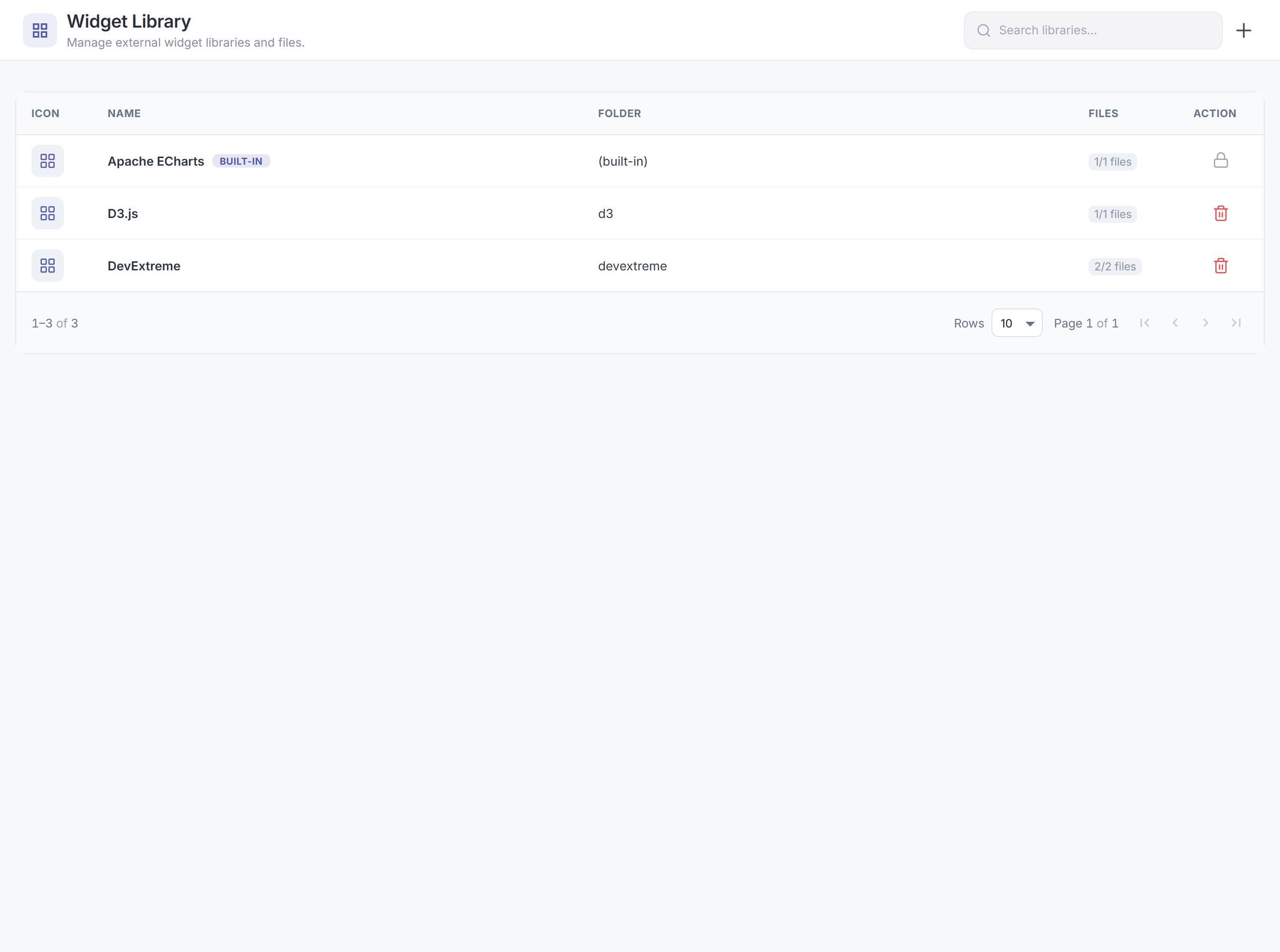
6 · Widget Library (Widget Kütüphanesi)

Widget Library, görselleştirmede kullanılan komponentleri (grafik, harita, tablo vb.) oluşturmak için kullanılan kütüphanelerdir — ApacheECharts, Bootstrap, OpenLayers, Tabulator gibi. Sisteme esnek bir şekilde yeni kütüphane eklenebilir; böylece Bussion, yeni grafik elemanlarının eklenmesine açık, genişletilebilir bir mimariye kavuşur.The Widget Library holds the libraries used to build the components shown in visualizations (charts, maps, tables, etc.) — such as ApacheECharts, Bootstrap, OpenLayers, Tabulator. New libraries can be added flexibly, giving Bussion an extensible architecture open to new chart elements.

⭐ Açık / genişletilebilir görselleştirme⭐ Open / extensible visualization Bir kütüphaneyi (JS dosyalarıyla) tanımlayınca, o kütüphanenin sunduğu grafik tipleri Visual Component ve Widget tasarımında kullanılabilir hâle gelir. Yeni bir görselleştirme yeteneği = yeni bir kütüphane eklemek. Once you register a library (with its JS files), the chart types it provides become available in Visual Component and Widget design. A new visualization capability = adding a new library.

Kütüphane listesiLibrary list

Widget Library Add New Library ⊕ Ex. ChartJS IconNameWidget Library IdFolderAction ApacheECharts1562717647554113ApacheEcharts🗑 Bootstrap7151435225555138Bootstrap5🗑 D36584453461622841D3🗑 DevExtreme1736618622556541devextreme🗑 OpenLayers7887233814426638OpenLayers7🗑 Tabulator2827331616263217Tabulator🗑 Items per page: 10 · 1–6 of 6
Şekil 18.Figure 18. Widget Library listesi: Icon · Name · Widget Library Id · Folder · Action. Folder, kütüphane dosyalarının tutulduğu klasördür. Add New Library yeni kütüphane ekler.The Widget Library list: Icon · Name · Widget Library Id · Folder · Action. Folder is where the library files live. Add New Library registers a new library.

Kütüphane formu (Update Widget Library)Library form (Update Widget Library)

Bir kütüphaneye tıklayınca açılır. Name ve Folder tanımlanır; Widget Files Path bölümünde kütüphaneye ait JS dosyalarının yolları listelenir. + Add New File dosya ekler, - Delete All File hepsini kaldırır; her dosya işaretlenerek aktif/pasif yapılır.Opened by clicking a library. You set Name and Folder; the Widget Files Path section lists the library's JS file paths. + Add New File adds a file, - Delete All File removes all; each file is toggled active via its checkbox.

Update Widget Library About Widget Library Name *ApacheECharts Folder *ApacheEcharts Widget Files Path+ Add New File- Delete All File /BussionExternalLibraries/ApacheEcharts/world.js /BussionExternalLibraries/ApacheEcharts/echarts.min.js Cancel Create
Şekil 19.Figure 19. Update Widget Library: Name*, Folder* ve Widget Files Path (kütüphanenin JS dosya yolları; + Add New File / - Delete All File). İşaretli dosyalar yüklenir.Update Widget Library: Name*, Folder* and Widget Files Path (the library's JS file paths; + Add New File / - Delete All File). Ticked files are loaded.
AlanFieldAnlamMeaning
Name *Kütüphanenin görünen adı.The library's display name.
Folder *Kütüphane dosyalarının tutulduğu klasör (/BussionExternalLibraries/…).The folder holding the library files (/BussionExternalLibraries/…).
Widget Files PathKütüphaneye ait JS dosyalarının listesi; işaretli olanlar yüklenir. + Add New File ekler, - Delete All File hepsini kaldırır.The list of JS files belonging to the library; ticked ones are loaded. + Add New File adds, - Delete All File removes all.

7 · Visual Component (Görsel Bileşen)

Visual Component'ler görselleştirmede kullanılan grafiklerdir (Bar, Donut, Funnel, Heat Map, KPI Card, Table…). Bir Widget Library'den (Bölüm 6) üretilirler. Her grafiğin konfigürasyonu bu modülden yapılır ve gerekirse kodu değiştirilerek özellikleri geliştirilebilir, yeni özellikler eklenebilir — çok esnek bir geliştirme imkânı sunar.Visual Components are the charts used in visualization (Bar, Donut, Funnel, Heat Map, KPI Card, Table…). They are produced from a Widget Library (Section 6). Each chart's configuration is done here and, if needed, its code can be edited to enhance or add features — offering very flexible development.

⭐ Kütüphane → Bileşen → Dashboard⭐ Library → Component → Dashboard Bir Widget Library (ör. ApacheECharts) üzerine bir Visual Component (ör. Bar) kurarsınız: hangi ayarların tasarımcıya görüneceğini (Config) ve grafiğin nasıl çizileceğini (Code) tanımlarsınız. Sonra bu bileşen dashboard'larda kullanılır. On a Widget Library (e.g. ApacheECharts) you build a Visual Component (e.g. Bar): you define which settings the designer sees (Config) and how the chart renders (Code). The component is then used in dashboards.

Bileşen listesiComponent list

Visual Components Add New Component ⊕ Ex. Bar Chart IconNameVisual Component IdDescriptionAction Advanced Table8277286832416261Rows & columns; each row an item…🗑 Bar3585187776887172Categorical data as rectangular bars…🗑 Category Filter6278341361542825🗑 Donut1374144126334717Parts of a whole, multiple series…🗑 Funnel6767566168435462Diminishing-length bars; top = 100%…🗑
Şekil 20.Figure 20. Visual Components listesi: Icon · Name · Visual Component Id · Description · Action. Her satır bir grafik tipidir (Bar, Donut, Funnel, Table…). Add New Component yeni grafik bileşeni oluşturur.The Visual Components list: Icon · Name · Visual Component Id · Description · Action. Each row is a chart type (Bar, Donut, Funnel, Table…). Add New Component creates a new chart component.

Sihirbaz · 1 — About Visual ComponentWizard · 1 — About Visual Component

Bir bileşene tıklayınca 3 adımlı sihirbaz açılır: 1 About · 2 Config · 3 Code. İlk adımda bileşenin kimliği ve hangi kütüphaneden üretileceği seçilir.Clicking a component opens a 3-step wizard: 1 About · 2 Config · 3 Code. The first step sets the component's identity and which library it is produced from.

1About Visual Component 2Config 3Code Name *Bar DescriptionCategorical data with rectangular bars… Visual Component StatusPublic ▾ Visual Component TypeData Component ▾ Libraries 🔍 Search Library ApacheEChartsAhmet Yılmaz Bootstrap Cancel Next
Şekil 21.Figure 21. Adım 1 — About: Name*, Description, Status (Public…), Type (Data Component…) ve Libraries (bileşenin üretileceği kütüphane — yeşil = seçili). Üstte 3 adımlı gösterge.Step 1 — About: Name*, Description, Status (Public…), Type (Data Component…) and Libraries (the library the component is built on — green = selected). The 3-step indicator is on top.

Sihirbaz · 2 — ConfigWizard · 2 — Config

İkinci adımda, bileşeni dashboard'a koyan tasarımcının göreceği ayar (config) parametreleri tanımlanır. Her satır: Config Name (kod içindeki ad), Visible Config Name (tasarımcıya görünen ad), Config Type (Text/Number/Boolean/Color), Config DefaultValue.The second step defines the config parameters the designer will see when placing the component on a dashboard. Each row: Config Name (the code-side name), Visible Config Name (shown to the designer), Config Type (Text/Number/Boolean/Color), Config DefaultValue.

+ Config NameVisible Config NameConfig TypeConfig DefaultValue Chart_TitleChart TitleText Add_FormatterAdd Formatter For CalculationsBooleantrue fontSizeEdit Font SizeNumber12 WeightFont Weight BoldBooleanfalse fontColorEdit Font ColorColor#000000 CursorAdd ZoomBooleantrue Back · NextBack · Next
Şekil 22.Figure 22. Adım 2 — Config: tasarımcıya açılan ayar parametreleri. Config Name (kod adı) · Visible Config Name (görünen ad) · Config Type (Text/Number/Boolean/Color) · Config DefaultValue. + yeni parametre ekler.Step 2 — Config: settings exposed to the designer. Config Name (code name) · Visible Config Name (display name) · Config Type (Text/Number/Boolean/Color) · Config DefaultValue. + adds a parameter.
Config TypeKullanımUse
TextSerbest metin (ör. Chart Title).Free text (e.g. Chart Title).
NumberSayısal değer (ör. Font Size = 12).A numeric value (e.g. Font Size = 12).
BooleanAçık/kapalı seçenek (ör. Add Zoom = true).An on/off toggle (e.g. Add Zoom = true).
ColorRenk seçici (ör. Font Color = #000000).A color picker (e.g. Font Color = #000000).

Sihirbaz · 3 — CodeWizard · 3 — Code

Son adımda grafiğin çizim kodu (JavaScript) yer alır. Kod, seçilen kütüphaneyi (ör. echarts) kullanır; Config'te tanımlı parametrelere widget.params[...] üzerinden ve veriye widget.dimensions / widget.measures üzerinden erişir. Expand Editor tam-ekran düzenleyiciyi açar. Kodu değiştirerek grafiğin davranışını geliştirebilir, yeni özellik ekleyebilirsiniz.The last step holds the chart's rendering code (JavaScript). It uses the chosen library (e.g. echarts), reading config parameters via widget.params[...] and data via widget.dimensions / widget.measures. Expand Editor opens a full-screen editor. By editing the code you can enhance the chart's behavior and add new features.

CodeExpand Editor 1if(refresh) { 2letexistingChart = echarts.getInstanceByDom(…); 3if(existingChart) existingChart.dispose(); 4} 6constparams = widget.params; 7constisHorizontal = parseBool(params['Orientation']); 8constisStacked = parseBool(params['Stacked']); 9constshowFormatter = parseBool(params['Add_Formatter']); 18constaxesLength = parseInt(params['Axes_Length'] || 10); 22constnDim = widget.dimensions.length > 1; 23constcolorType = widget.colors.type; Back · Done
Şekil 23.Figure 23. Adım 3 — Code: grafiğin JS çizim kodu (kütüphaneyi kullanır; widget.params, widget.dimensions/measures). Expand Editor tam-ekran açar. Kod düzenlenerek bileşen geliştirilebilir.Step 3 — Code: the chart's JS render code (uses the library; widget.params, widget.dimensions/measures). Expand Editor opens full-screen. Editing the code extends the component.

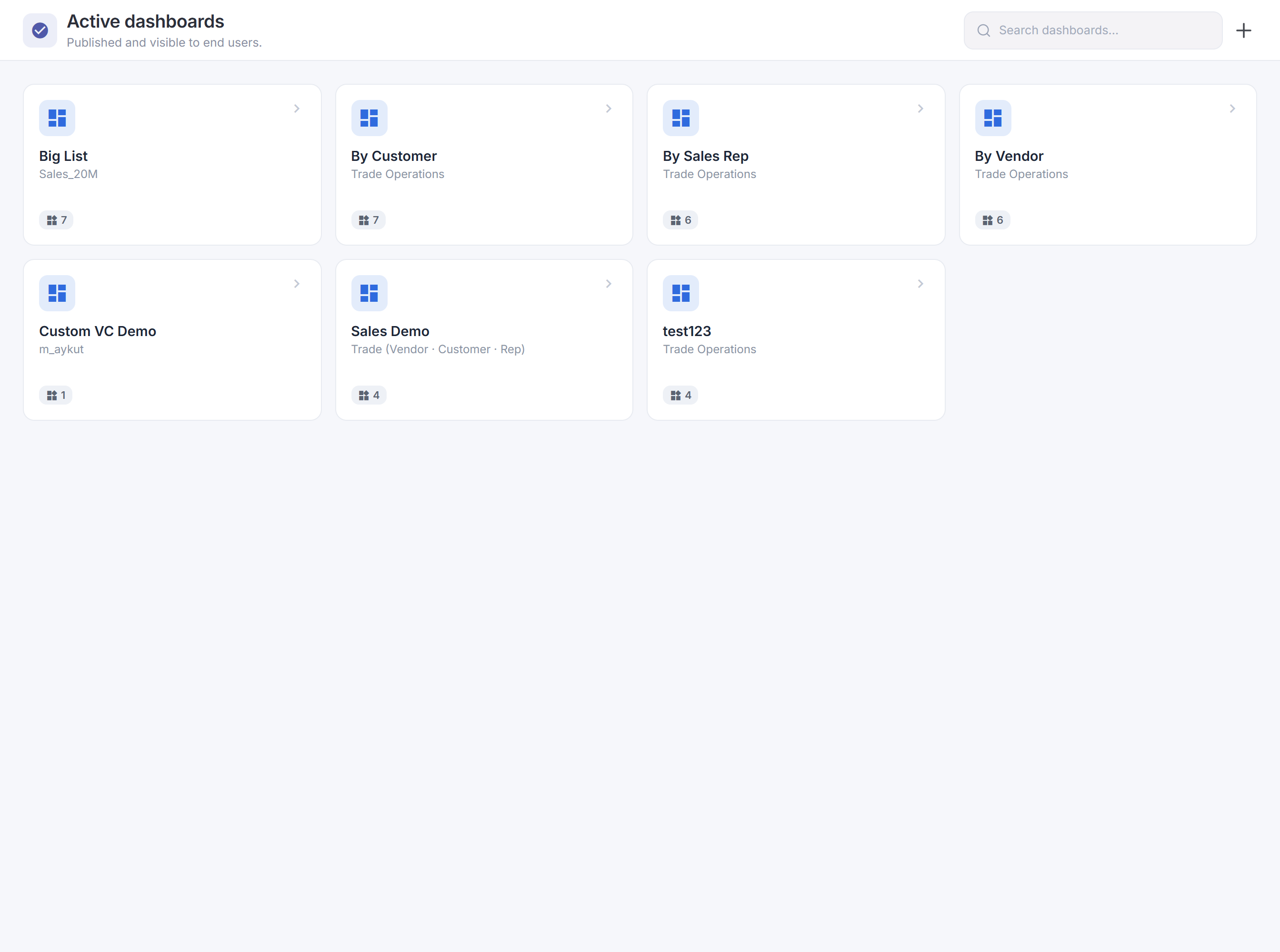
8 · Dashboard (Panolar)

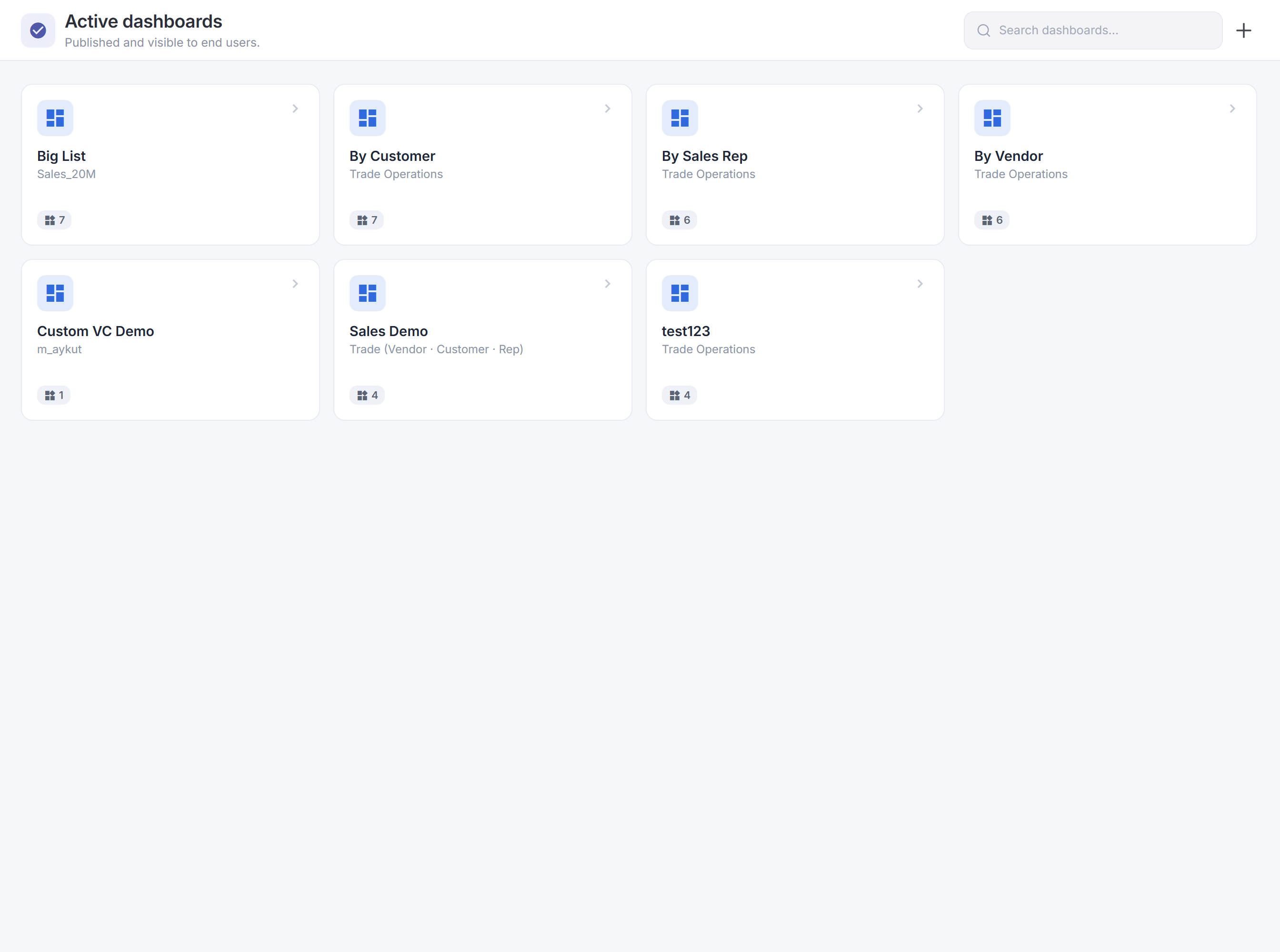
Dashboard ekranı, sistemde tasarlanmış tüm panoların listesini gösterir. Bu panolar gruplara atanarak son kullanıcılar tarafından erişilebilir olur. Panolar, Dashboard Designer uygulamasıyla sürükle-bırak şeklinde tasarlanır — bu, ayrı ve geniş bir ekrandır ve kendi bölümünde ele alınır.The Dashboard screen lists all the dashboards designed in the system. These are assigned to groups and become accessible to end users. Dashboards are built with the Dashboard Designer app via drag & drop — a separate, large screen covered in its own section.

Dashboard listesiDashboard list

Dashboards Add New Dashboard ⊕ Ex. Sales IconTitleDashboard IdDescriptionAction 📊Sales Analytics2563223462527876Sales KPIs & trends☁ ⤢🗑 Assets Dashboard5651481163241772Shows details of assets used in company☁ ⤢🗑 Operations Overview2286317875578258☁ ⤢🗑 Customer Insights7166364382141337Customer behaviour & risk☁ ⤢🗑 Items per page: 10 · 1–10 of 54
Şekil 24.Figure 24. Dashboards listesi: Icon · Title · Dashboard Id · Description · Action. Aksiyonlar: yedekten içe aktar, aç/paylaş, 🗑 sil. Add New Dashboard yeni pano oluşturur.The Dashboards list: Icon · Title · Dashboard Id · Description · Action. Actions: import from backup, open/share, 🗑 delete. Add New Dashboard creates a dashboard.

Dashboard formu (Update Dashboard)Dashboard form (Update Dashboard)

Bir panoya tıklayınca açılan formdur; iki sekmesi vardır: About Dashboard (tanım ve ayarlar) ve Code. Altta Cancel · Save As · Update bulunur; Save As panoyu yeni bir kopya olarak kaydeder.Opened by clicking a dashboard; it has two tabs: About Dashboard (definition and settings) and Code. Cancel · Save As · Update at the bottom; Save As saves it as a new copy.

Update Dashboard About Dashboard Code Import From Backup Title *Assets Dashboard DescriptionShows details of assets used in company Content Language *English ▾ Initial Load Enabled *Enabled (1) ▾ Customize CssYes ▾ Is main Dashboard?Yes ▾ AccessPublic ▾ StatusActive ▾ Border VisibilityVisible ▾ Grid Size30 Auto RefreshYes ▾ Refresh Interval (sec) *10 AuditNo ▾ Tags OwnerElif Demir Update Time10/10/2024 07:16 Filter for Dashboard+ Add New Filter Cancel Save As Update
Şekil 25.Figure 25. Update Dashboard — About sekmesi: Title, Description, Content Language, Initial Load, Customize Css, Is main Dashboard, Access, Status, Border Visibility, Grid Size, Auto Refresh + Refresh Interval, Audit, Tags, Owner/zaman bilgileri ve Filter for Dashboard. Import From Backup ve Code sekmesi de vardır.Update Dashboard — About tab: Title, Description, Content Language, Initial Load, Customize Css, Is main Dashboard, Access, Status, Border Visibility, Grid Size, Auto Refresh + Refresh Interval, Audit, Tags, Owner/timestamps and Filter for Dashboard. There's also Import From Backup and a Code tab.
AlanFieldAnlamMeaning
Title * · DescriptionPanonun adı ve açıklaması.The dashboard's name and description.
Content LanguagePanonun içerik dili.The dashboard's content language.
Initial Load EnabledAçılışta verinin otomatik yüklenip yüklenmeyeceği.Whether data loads automatically on open.
Customize CssÖzel CSS ile görünüm uyarlama.Customize the look with custom CSS.
Is main Dashboard?Kullanıcının açılış (ana) panosu olup olmadığı.Whether it's the user's main (landing) dashboard.
Access · StatusErişim (Public…) ve durum (Active…).Access (Public…) and status (Active…).
Border Visibility · Grid SizeWidget kenarlıkları ve yerleşim ızgara boyutu.Widget borders and layout grid size.
Auto Refresh · Refresh IntervalOtomatik yenileme ve aralığı (saniye).Auto refresh and its interval (seconds).
Audit · Tags · OwnerDenetim kaydı, etiketler ve sahip/zaman bilgileri.Audit logging, tags and owner/timestamps.
Filter for DashboardPano geneline uygulanan filtre(ler).Filter(s) applied across the dashboard.
Import From Backup · Save AsYedekten içe aktarma; panoyu yeni kopya olarak kaydetme.Import from a backup; save the dashboard as a new copy.

Son kullanıcı görünümüEnd-user view

Tasarlanan pano, son kullanıcı ekranında şöyle görünür: üstte başlık + soru sorma kutusu ve Filters; KPI kartları ve etkileşimli grafikler. Filtreler (ör. Product Name, Region) panonun tamamını süzer.A designed dashboard looks like this for the end user: a title + a question box and Filters on top; KPI cards and interactive charts. Filters (e.g. Product Name, Region) slice the whole dashboard.

Sales Analytics 🔍 You can ask your questions… ⚙ Filters Product Name0 of 59 Region0 of 4 Total Discounts2K Total Orders831.4M Total Customers500 Active Users40 Total Profits93.9M Top 10 Cities Region Customers Treemap South East Central West Profits by City Monthly Profit Totals Total Profits by Product
Şekil 26.Figure 26. Son kullanıcı pano görünümü (temsilî): başlık + soru kutusu & Filters, filtre çipleri, KPI kartları (Total Orders, Customers, Profits…) ve etkileşimli grafikler (bar, donut, treemap, pie, çizgi). Filtreler tüm panoyu süzer. (Veriler kurgusaldır.)End-user dashboard view (illustrative): title + a question box & Filters, filter chips, KPI cards (Total Orders, Customers, Profits…) and interactive charts (bar, donut, treemap, pie, line). Filters slice the whole dashboard. (Data is fictional.)

Dashboard DesignerDashboard Designer

Dashboard Designer, yeni bir pano oluşturmak ya da var olanı değiştirmek için kullanılan editördür. Açıldığında var olan grafikler tuvalde, üstte ise tasarım araç çubuğu görünür. Grafiklerin yeri ve boyutu sürükle-bırak ile değiştirilir.The Dashboard Designer is the editor used to create a new dashboard or modify an existing one. On open, existing charts appear on the canvas and the design toolbar on top. Charts are moved and resized by drag & drop.

Problem Management 📱 Views 👁 fx Filters ⚙ Add Widget Save Total Problems253 Open Problems165 Closed Problems59 Problems By Status 160 Problems By Priority Distribution 131 Org B122 Problems By Impact Major Problems Daily Created Problems Daily Closed Problems
Şekil 27.Figure 27. Dashboard Designer (temsilî): tuvalde widget'lar (KPI kartları + grafikler), üstte tasarım araç çubuğu. Grafikler sürükle-bırak ile taşınır/yeniden boyutlandırılır.Dashboard Designer (illustrative): widgets on the canvas (KPI cards + charts) and the design toolbar on top. Charts are moved/resized by drag & drop.

Araç çubuğuToolbar

ButonButtonİşleviFunction
↻ RefreshVeriyi yeniden yükler.Reloads the data.
📱 Mobile DesignDaha küçük ekranlar için özel mobil tasarım yapılır.Lets you craft a dedicated mobile layout for smaller screens.
ViewsÖn tanımlı filtreler (kayıtlı görünümler) — aşağıda.Predefined filters (saved views) — see below.
▦ LayoutPanonun büyüklüğü/yayılımı; açılır menüden seçilir (aşağıda).The dashboard's size/spread; chosen from a dropdown (below).
fx MetricsPanoya özel metriklerin hesaplandığı alan — veriden metrik üretip grafiklerde kullanılır.Where dashboard-specific metrics are computed — derive metrics from data and use them in charts.
FiltersPanoda hangi alanların filtre olarak görüneceği ayarlanır; default değer atanabilir (aşağıda).Sets which fields appear as filters on the dashboard; default values can be assigned (below).
Add WidgetMevcut bir görsel bileşeni panoya ekler.Adds an existing visual component to the dashboard.
Create WidgetYeni bir widget oluşturur.Creates a new widget.
SavePano tasarımını kaydeder.Saves the dashboard design.

Yeni dashboard oluşturma & Add WidgetCreating a new dashboard & Add Widget

Yeni bir dashboard açıldığında boş bir sayfa (ızgara) gelir; Designer'da bu sayfa grafiklerle doldurulur. Var olan bir grafik eklemek için Add Widget butonu kullanılır: açılan Widget Selection Form'da sistemdeki widget'lar aranır, istenen widget Select ile işaretlenir ve Add'e basıldığında panoya yerleştirilir. (Sıfırdan yeni bir widget için Create Widget kullanılır.)Opening a new dashboard gives an empty page (grid); in the Designer you fill it with charts. To add an existing chart use Add Widget: in the Widget Selection Form you search the system's widgets, mark the one you want with Select, and pressing Add places it on the dashboard. (For a brand-new widget use Create Widget.)

Widget Selection FormYou can add it to your dashboard by choosing from previously created widgets. Add sales✕ 🔍 SalesTop 15Select Office SuppliesTechnologyFurniture Sales by RegionCancel NAEUMEALATAMAPAC
Şekil 27b.Figure 27b. Add Widget → Widget Selection Form: arama kutusuyla sistemdeki widget'lar bulunur. İstenen widget Select ile işaretlenir (yeşil çerçeve = seçili; Cancel ile geri alınır) ve Add ile panoya yerleştirilir.Add Widget → Widget Selection Form: search finds the system's widgets. Mark the one you want with Select (green border = selected; Cancel undoes) and place it with Add.

Create Widget — Widget DesignerCreate Widget — Widget Designer

Var olan bir widget yerine sıfırdan yeni bir widget oluşturmak istediğinizde Create Widget butonu kullanılır. Butona basıldığında sistem dinamik mi yoksa statik mi bir widget oluşturulacağını sorar:When you want to build a brand-new widget instead of using an existing one, use the Create Widget button. The system first asks whether you want a dynamic or static widget:

  • Dynamic Data Widget — veriye bağlı, hesaplama yapan widget'lar (Bar Chart, Donut Chart vb.).Dynamic Data Widget — data-bound widgets that perform calculations (Bar Chart, Donut Chart, etc.).
  • Static Widget — veriye bağlı olmayan widget'lar; başlık, paragraf metni, görsel gibi statik içerik.Static Widget — widgets not bound to data; static content such as a title, paragraph text or image.
Widget Type Selection Select widget type to continue Dynamic Data Widget Create a widget with dynamic data from data sources. Bar Chart, Donut Chart vs. Static Widget Create a widget with static content. Image, Title vs.
Şekil 27c.Figure 27c. Widget Type Selection: Create Widget'a basıldığında çıkan seçim — veriye bağlı Dynamic Data Widget ya da statik içerikli Static Widget.Widget Type Selection: shown after pressing Create Widget — a data-bound Dynamic Data Widget or a Static Widget with static content.

Dynamic Data Widget seçildiğinde Widget Designer (Create New Widget) ekranı açılır; bu ekranda karmaşık grafik nesneleri oluşturursunuz. Sol taraftaki katlanabilir bölümler (Data Settings, Calculation Settings, Visual Components, Widget Event Settings) sırasıyla doldurulur; sağ tarafta canlı bir önizleme (Data Preview / Widget Preview) görünür.Choosing Dynamic Data Widget opens the Widget Designer (Create New Widget), where you build complex chart objects. The collapsible sections on the left (Data Settings, Calculation Settings, Visual Components, Widget Event Settings) are filled in order; a live preview (Data Preview / Widget Preview) is shown on the right.

1) Data Settings — Data Store seçimi1) Data Settings — choosing a Data Store

Bir widget oluşturmak için önce bir Data Store seçilir. Kullanıcıya atanmış olan Data Store'lar Data Settings altında listelenir; bir Data Store seçildiğinde içindeki örnek veriler fikir vermesi için sağ tarafta önizlenir.To build a widget you first pick a Data Store. The Data Stores assigned to the user are listed under Data Settings; selecting one previews its sample data on the right so you know what you are working with.

Create New Widget You can create a new widget and add it to your dashboard Data PreviewWidget Preview ⠿ Collapse AllClear All ☰ Data Settings Search Datastore🔍 Asset Management10/09/2024 Audit Logs07/01/2026 Sales Data10/02/2026 Car Rental Data10/09/2025 Screen Timeout5 Task Timeout5 Calculation Settings Asset CategoryAsset StatusAsset ImpactManufacturer WindowsIn UseEnterpriseDell LinuxExpiredUserHPE DB InstanceIn RepairEnterpriseOracle WindowsIn UseSite/DeptDell NetworkPowered OffMultiple UsersCisco LinuxIn UseEnterpriseHPE
Şekil 27d.Figure 27d. Widget Designer · Data Settings: kullanıcıya atanmış Data Store'lar listelenir; seçilen Data Store'un örnek verisi sağda Data Preview olarak görünür.Widget Designer · Data Settings: the Data Stores assigned to the user are listed; the selected store's sample data appears on the right as Data Preview.
Screen Timeout ve Task Timeout hesaplama ile ilgili zaman aşımı değerleridir:Screen Timeout and Task Timeout are calculation-related timeout values:
AyarSettingAnlamıMeaning
Screen TimeoutHesaplama bu süreyi aşarsa Bussion ekranı kilitlemez; hesaplamayı arka planda sürdürür, arayüzü serbest bırakır ve kullanıcıyı bilgilendirir.If the calculation exceeds this, Bussion does not lock the screen; it keeps calculating in the background, frees the UI and informs the user.
Task TimeoutServer tarafında task için ayrılan süredir. Hesaplama bu süreyi aşarsa Bussion, performans düşüşünü önlemek için widget hesaplama task'ını iptal eder.The server-side time allotted to the task. If the calculation exceeds it, Bussion cancels the widget calculation task to avoid a performance drop.

2) Calculation Settings — gruplama & toplulaştırma2) Calculation Settings — grouping & aggregation

İkinci adımda veriyle yapılacak hesaplama tanımlanır. Örnek: asset'leri durumuna göre gruplayıp her durumda kaç asset olduğunu saymak. Calculation Settings'te gruplama alanı olan Asset Status'a tıklarsınız (alan yeşile döner = gruplama), ardından CI Name alanını count ile saydırırsınız. Böylece her Asset Status için o durumdaki asset sayısı hesaplanır.In the second step you define the calculation on the data. Example: group assets by status and count how many assets are in each status. In Calculation Settings you click the grouping field Asset Status (it turns green = grouping), then aggregate CI Name with count. This yields the asset count per Asset Status.

Create New Widget Data PreviewWidget Preview Calculation Settings Use Query Editor 📏 ↕ Sort 𝑓𝑥 Search Column🔍 𝐓 Asset Status 𝐓 CI Name📏 𝐓 Asset Category 📅 Asset Creation Date 𝐓 Asset Impact 𝐓 Asset Manufacturer countcount distinct Asset Statuscount(CI Name) In Repair14 Expired16 In Use40 Powered Off1
Şekil 27e.Figure 27e. Calculation Settings: gruplama alanı Asset Status seçilince yeşile döner; CI Name alanı count ile saydırılır ve sağdaki önizlemede her durum için asset sayısı çıkar.Calculation Settings: the grouping field Asset Status turns green when selected; CI Name is aggregated with count, and the preview on the right shows the asset count for each status.

3) Sort & Limit — sıralama ve veri sınırı3) Sort & Limit — ordering and data limit

Calculation Settings'teki sıralama sekmesinde widget'ta gösterilecek maksimum kayıt sayısını (Limit Data) belirleyebilir, gelen verinin sıralamasını alfabetik (Alph) ya da hesaplanan değere (Num) göre, artan (Asc) veya azalan (Desc) olarak ayarlayabilirsiniz.In the sort tab of Calculation Settings you can set the maximum number of records (Limit Data) shown in the widget, and order the data alphabetically (Alph) or by the calculated value (Num), ascending (Asc) or descending (Desc).

Calculation Settings · Sort And Limit Clear All ☰ Limit Data500 Type Alph Num Order Asc Desc
Şekil 27f.Figure 27f. Sort And Limit: Limit Data ile gösterilecek kayıt sayısı; Type (Alph/Num) ve Order (Asc/Desc) ile sıralama belirlenir.Sort And Limit: Limit Data caps the number of records shown; Type (Alph/Num) and Order (Asc/Desc) set the ordering.

4) fx — Metrik & formül editörü4) fx — Metric & formula editor

Calculation Settings'in fx sekmesi metrik hesaplamalarının yapıldığı alandır. Widget'ın mevcut hesaplamasının ötesinde farklı metrikleri hesaba katmak ya da özel fonksiyonlar kullanmak isterseniz bu alan widget bazlı hesaplamalarınızı zenginleştirir. Sekmeye tıkladığınızda sağdaki yardım panelinde üstte dashboard/widget içinde kullanılabilen Measurements (hesaplanmış metrikler), altta ise sistemin desteklediği Functions listelenir; bu fonksiyonlarla karmaşık matematiksel ve mantıksal işlemler yapabilirsiniz.The fx tab of Calculation Settings is where metric calculations are made. When you want to factor in metrics beyond the widget's existing calculation, or use custom functions, this area enriches your per-widget calculations. Clicking the tab shows a help panel on the right: Measurements at the top (the calculated metrics usable in the dashboard/widget) and the system-supported Functions below; with these you can perform complex math and logic.

Bir formül oluşturmak için Formula Name verilir ve Formula alanına ifade yazılır. SUM / AVG / IF / COUNT kısayol butonları sık kullanılan ifadeleri hazır ekler; Expand Editor ile editör büyütülür (sınır 1000 karakter). Add formülü ekler, Clear temizler. Eklenen formül, widget'ta yeni bir hesaplanan alan olarak kullanılabilir.To build a formula you give it a Formula Name and type the expression into Formula. The SUM / AVG / IF / COUNT shortcut buttons insert common expressions; Expand Editor enlarges the editor (1000-character limit). Add adds the formula, Clear resets it. The added formula can be used as a new calculated field in the widget.

Calculation Settings Use Query Editor 📏 ↕ Sort 𝑓𝑥 Formula Name * ex.SumField Formula * SUM AVG IF COUNT ex.Sum(field) ⤢ Expand Editor 0 / 1000 ⓘ You can create and use new fields with calculations. + Add ✕ Clear MEASUREMENTS countCI NameMeasure function: count FUNCTIONS ifif(A>100,true,false) → true if A > 100 ConcatConcat("A","B","C") → "ABC" RoundRound(2.567,2) → 2.57 YearYear("1974-12-07 14:32:45") → 1974
Şekil 27g.Figure 27g. fx formül editörü: solda Formula Name + Formula (SUM/AVG/IF/COUNT kısayolları, Expand Editor, Add/Clear); sağda Measurements (hesaplanmış metrikler) ve Functions (örnekli fonksiyon listesi).fx formula editor: on the left Formula Name + Formula (SUM/AVG/IF/COUNT shortcuts, Expand Editor, Add/Clear); on the right Measurements (calculated metrics) and Functions (the function list with examples).

Measurements altında hesaplanmış metriklerin listesi, Functions altında ise her birinin adı ve kullanım örneğiyle birlikte fonksiyon listesi yer alır. Desteklenen fonksiyonlar:Under Measurements you find the list of calculated metrics, and under Functions the function list with each one's name and a usage example. The supported functions:

KategoriCategoryFonksiyonFunctionÖrnek → SonuçExample → Result
MantıkLogicifif(A>100,true,false)A 100'den büyükse true, değilse falsetrue if A > 100, else false
MetinTextConcatConcat("A","B","C","DEFGH")"ABCDEFGH"
SplitSplit("Hello World"," ",0)"Hello"
FormatFormat(34567,"0.00 TL")"34567 TL"
FormatLineFormatLine("Hello {0} {1}","beautiful","world")"Hello beautiful world"
SubStringSubString("Hello World",0,2)"He"
TrimTrim(" Ayk ")"Ayk"
ToLowerToLower("HELLO")"hello"
ToUpperToUpper("hello")"HELLO"
CapitalizeCapitalize(" hELLO wOrld")"Hello World"
ReplaceReplace('Hello World','World','Universe')"Hello Universe"
LeftLeft('ABCDEFG',3)"ABC"
RightRight('ABCDEFG',4)"DEFG"
ContainsContains("Hello World","hello")true
StartsWithStartsWith("Hello World","hello")true
EndsWithEndsWith("Hello World","old")true
Tarih/SaatDate/TimeYearYear("1974-12-07 14:32:45")1974
QuarterQuarter("1974-12-07 14:32:45")4
MonthMonth("1974-12-07 14:32:45")12
DayDay("1974-12-07 14:32:45")7
WeekdayWeekday("1974-12-07 14:32:45")7 (Pazartesi = 1)(Monday = 1)
HourHour("1974-12-07 14:32:45")14
MinuteMinute("1974-12-07 14:32:45")32
SecondSecond("1974-12-07 14:32:45")45
DönüşümConversionToStringToString(123)"123"
ToIntToInt("123.42")123
ToDoubleToDouble("123.42")123.42
ToDateTimeToDateTime("1974-12-07 14:32:45")'1974-12-07 14:32:45'
ToBooleanToBoolean("true")true
ToplulaştırmaAggregateSumSayısal bir kolonu toplar.Sums a numerical column.
AvgSayısal bir kolonun ortalaması.Average value of a numerical column.
StdSayısal bir kolonun standart sapması.Standard deviation of a numerical column.
MaxSayısal bir kolonun en büyük değeri.Max value of a numerical column.
MinSayısal bir kolonun en küçük değeri.Min value of a numerical column.
MatematikMathAbsAbs(-5)5
AcosAcos(1)0
AsinAsin(0)0
AtanAtan(1)0.785398163
CeilingCeiling(2.3)3
CosCos(0)1
ExpExp(1)2.718281828
FloorFloor(2.7)2
IEEERemainderIEEERemainder(5,2)1
LnLn(2.718281828)1
LogLog(8,2)3
Log10Log10(100)2
PowPow(2,3)8
RoundRound(2.567,2)2.57
SignSign(-10)-1
SinSin(0)0
SqrtSqrt(9)3
TanTan(0)0
TruncateTruncate(2.567)2

Eklenen formüller Calculated Fields altında listelenir; her biri ✎ ile düzenlenir, ✕ ile silinir. Aşağıdaki örnekte iki metrik tanımlanmıştır: Total, gruplanmış countCI Name değerlerini Sum ile toplar (= 71); % ise ("countCI Name"/Total)*100 ile her satırın yüzdesini hesaplar. Sonuçlar, yan taraftaki Data Preview'de yeni Total ve % kolonları olarak anında görünür.Added formulas are listed under Calculated Fields; each can be edited with ✎ or removed with ✕. In the example below two metrics are defined: Total sums the grouped countCI Name values with Sum (= 71); % computes each row's percentage with ("countCI Name"/Total)*100. The results appear instantly as new Total and % columns in the Data Preview alongside.

Calculated Fields Total : Sum("countCI Name") % : ("countCI Name"/Total)*100 Asset Status countCI Name Total % In Repair147119.72 Expired167122.54 In Use407156.34 Powered Off1711.41
Şekil 27h.Figure 27h. Calculated Fields: fx ile tanımlanan iki metrik (Total = Sum("countCI Name"), % = ("countCI Name"/Total)*100) ve sağdaki Data Preview'de oluşan yeni Total ve % kolonları.Calculated Fields: the two metrics defined with fx (Total = Sum("countCI Name"), % = ("countCI Name"/Total)*100) and the new Total and % columns they produce in the Data Preview on the right.

5) Visual Components — görselleştirme5) Visual Components — visualization

Visual Components bölümünde verinizi farklı görsel bileşenlerle görselleştirirsiniz. Pie, Donut, Bar, Table gibi birçok hazır komponentten birini seçerek görsel olarak zengin grafikler oluşturabilirsiniz. Search Component Type ile komponent aranır, seçilen komponent yeşil çerçeveyle işaretlenir ve sağdaki Widget Preview'de hesaplanan veri anında bu komponentle çizilir. (Sekmedeki diğer iki başlık komponentin renk paleti ve ayarlarını düzenler.)In the Visual Components section you visualize your data with different visual components. Pick from many ready components such as Pie, Donut, Bar, Table to build visually rich charts. Use Search Component Type to find a component; the selected one is marked with a green border and the calculated data is drawn with it instantly in the Widget Preview on the right. (The other two tabs edit the component's color palette and settings.)

Create New Widget Data PreviewWidget Preview Data Settings Calculation Settings Visual Components ▦▦ 🎨 🔧 Search Component Type🔍 🖼 📊 </> 010203040 1416401 In RepairExpiredIn UsePowered Off
Şekil 27i.Figure 27i. Visual Components: komponent ızgarasından bir grafik tipi seçilir (yeşil çerçeve = seçili); hesaplanan veri sağdaki Widget Preview'de o komponentle (burada Bar) çizilir. Diğer sekmeler renk paleti ve ayarları düzenler.Visual Components: a chart type is chosen from the component grid (green border = selected); the calculated data is drawn with it in the Widget Preview on the right (here a Bar). The other tabs edit the color palette and settings.

Visual Components'in ikinci sekmesi (🎨 Coloring) grafiği renklendirmek içindir. Color Type ile renklendirme modu seçilir; Manage Colors altında renk tekerleğinden kendi renginizi belirleyebilir (ör. #cd853f) ya da Bussion ile gelen hazır Color Palettes (Coffee with Milk, Cosmic Splash, Forest, Golden Harvest gibi uyumlu paletler) arasından seçip Apply ile uygulayabilirsiniz. Seçilen renk önizlemeye anında yansır.The second tab of Visual Components (🎨 Coloring) is for coloring the chart. Color Type selects the coloring mode; under Manage Colors you can pick your own color from the color wheel (e.g. #cd853f) or choose from the ready Color Palettes that ship with Bussion (harmonious palettes such as Coffee with Milk, Cosmic Splash, Forest, Golden Harvest) and apply with Apply. The chosen color is reflected in the preview instantly.

Create New Widget Visual Components ▦▦ 🎨 🔧 Coloring Color Type Manage Colors Clear All ☰ #cd853fIn Repair Color PalettesApply Coffee with Milk Cosmic Splash Forest Golden Harvest 010203040 1416401 In RepairExpiredIn UsePowered Off
Şekil 27j.Figure 27j. Coloring sekmesi: Color Type ile renk modu; Manage Colors'ta renk tekerleğinden kendi rengini seçme (#cd853f) ya da hazır Color Palettes + Apply. Seçim önizlemeye anında yansır.Coloring tab: Color Type for the color mode; in Manage Colors pick your own color from the wheel (#cd853f) or a ready Color Palette + Apply. The choice is reflected in the preview instantly.

6) Widget Event Settings — drill-down6) Widget Event Settings — drill-down

Widget Designer'ın son sekmesi Widget Event Settings'tir. Bu sekme ile widget'a tıklandığında farklı bir dashboard açılır ve drill-down yapılır; böylece dashboard'lar etkileşimli, hareketli bir davranış sergiler. Açılacak pencerenin hangi dashboard ve hangi view olacağı, nerede ve ne büyüklükte açılacağı buradan ayarlanır. Use Widget Filter ve Use Dashboard Filter seçeneklerinin ayrık olması esneklik kazandırır — istediğiniz filtre setini hedef dashboard'a taşırsınız.The last tab of the Widget Designer is Widget Event Settings. With it, clicking the widget opens a different dashboard and performs a drill-down, giving dashboards interactive, dynamic behavior. You configure which dashboard and which view the opened window shows, plus where and how large it opens. Keeping Use Widget Filter and Use Dashboard Filter separate adds flexibility — you carry exactly the filter set you want into the target dashboard.

Widget Event Settings Dashboards Vehicle Performance Analytics Shared Views General Window Opener Method Center Window Width % 50 Window Height % 50 Use Widget Filter Use Dashboard Filter
Şekil 27k.Figure 27k. Widget Event Settings: widget tıklanınca açılacak hedef dashboard, view, pencere konumu/boyutu ve filtre aktarım anahtarları.Widget Event Settings: the target dashboard, view, window position/size and filter-passing switches used when the widget is clicked.
AlanFieldİşleviFunction
DashboardsWidget'a tıklanınca açılacak dashboard.The dashboard to open when the widget is clicked.
Shared ViewsHedef dashboard'da açılacak view (ön tanımlı filtre seti).The view to open in the target dashboard (a predefined filter set).
Window Opener MethodPencerenin nerede/nasıl açılacağı (ör. Center).Where/how the window opens (e.g. Center).
Window Width % / Height %Açılan pencerenin ekrana oranla genişlik ve yüksekliği.The opened window's width and height relative to the screen.
Use Widget FilterAçık ise widget'ın filtrelerini açılan pencereye geçirir.When on, passes the widget's filters to the opened window.
Use Dashboard FilterAçık ise mevcut dashboard'un filtrelerini yeni açılacak dashboard'a geçirir.When on, passes the current dashboard's filters to the newly opened dashboard.

7) Widget araç çubuğu — Image & Filter7) Widget toolbar — Image & Filter

Önizleme alanının sağ üstündeki butonlar widget'a ek özellikler kazandırır. Soldan sağa: 🖼 Image, ⚙ Filter, 📊 Widget Preview (önizleme modu) ve </> Code. İlk iki buton aşağıda açıklanmıştır.The buttons at the top-right of the preview area add extra capabilities to the widget. From left to right: 🖼 Image, ⚙ Filter, 📊 Widget Preview (preview mode) and </> Code. The first two are described below.

🖼 Image butonu, sistemde yer alan görselleri listeler; Add New Image ile widget'ta kullanılmak üzere yeni görsel eklenir. Her satırda görselin yanında sil, ve bağlantı (link) kısayolları bulunur.The 🖼 Image button lists the images in the system; Add New Image adds a new image to use in the widget. Each row has delete, open and link shortcuts next to the image.

+ Add New Image 🛡🗑🔗 🏢🗑🔗 🕐🗑🔗 🏛🗑🔗 🗑🔗 🗑🔗
Şekil 27l.Figure 27l. Image butonu: sistemdeki görseller listelenir; Add New Image ile yeni görsel eklenir. Her satırda sil / aç / link kısayolları vardır.Image button: the system's images are listed; Add New Image adds a new one. Each row has delete / open / link shortcuts.

⚙ Filter butonu, widget bazında filtreleme sağlar ve dört sekmesi vardır: Filters, Ignore Filters, Join Filters ve NLP.The ⚙ Filter button provides widget-level filtering and has four tabs: Filters, Ignore Filters, Join Filters and NLP.

Filters Ignore Filters Join Filters NLP Freeze For Dashboard Filtering Field * Operator * Value * Add
Şekil 27m.Figure 27m. Filter diyaloğu (Filters sekmesi): Field · Operator · Value ile widget'a özel filtre eklenir; Freeze For Dashboard Filtering anahtarı widget'ı dashboard filtrelemesine karşı sabitler.Filter dialog (Filters tab): add a widget-specific filter with Field · Operator · Value; the Freeze For Dashboard Filtering switch pins the widget against dashboard filtering.
Freeze For Dashboard Filtering, widget'ı dashboard seviyesinden gelen filtrelere karşı kapatır. Widget yalnızca kendi filtrelerini dikkate alır; dashboard'daki filtre panelinden ne seçilirse seçilsin kendi hesaplamasını değiştirmez.Freeze For Dashboard Filtering closes the widget to filters coming from the dashboard level. The widget honors only its own filters; whatever is chosen in the dashboard filter panel, its calculation does not change.
SekmeTabİşleviFunction
FiltersWidget bazında filtre tanımlar (Field / Operator / Value).Defines widget-level filters (Field / Operator / Value).
Ignore FiltersDashboard'dan gelen filtrelerden hangileri göz ardı edilecekse buraya yazılır; widget bu filtreleri dikkate almaz.Lists which incoming dashboard filters to ignore; the widget will not honor them.
Join FiltersDashboard'dan gelen filtre adıyla widget'taki filtre adını eşleştirir (ör. dashboard'daki City → widget'taki Sehir).Maps the incoming dashboard filter name to the widget's filter name (e.g. dashboard's City → widget's Sehir).
NLPDeneysel özellik. Bussion doğal dil işleme yapar; kullanıcıların sorgu sırasında yazdığı kelimeleri widget'larla eşleştirmek için yardımcı kelimeler buraya yazılır.Experimental feature. Bussion performs natural-language processing; you add helper keywords here to match the words users type when querying with the relevant widgets.

8) Code (</>) — widget kodu8) Code (</>) — widget code

Araç çubuğundaki en sondaki </> Code butonuna basılınca widget kodu görünür hale gelir. Buradan kodda değişiklik yapılarak komponentin davranışı değiştirilebilir — bu ileri seviye bir konfigürasyondur. Editör araç çubuğunda Reset, Expand Editor, ▶ Compile ve dil seçimi (javascript) bulunur; altta Delete · Cancel · Save As · Save aksiyonları yer alır.Pressing the last </> Code button in the toolbar reveals the widget code. You can change the component's behavior by editing the code here — this is an advanced configuration. The editor toolbar has Reset, Expand Editor, ▶ Compile and a language selector (javascript); the bottom holds the Delete · Cancel · Save As · Save actions.

Kodda bir bozulma olursa yalnızca ilgili widget etkilenir; diğer widget'lar ve sistem etkilenmez. Reset'e basıldığında kod temel (base) versiyona geri döner.If the code breaks, only that widget is affected; other widgets and the system are not. Pressing Reset returns the code to its base version.
ResetExpand Editor▶ Compile javascript ⌄ 12346789101112181920222325 if (refresh) { let existingChart = echarts.getInstanceByDom(document.getElementById(widget.widgetId)); if (existingChart) existingChart.dispose(); } const params = widget.params; const isHorizontal = parseBool(params['Orientation']); const isStacked = parseBool(params['Stacked']); const showDataLabels = parseBool(params['Show_text']); const isClustered = parseBool(params['Clustered']); const showFormatter = parseBool(params['Add_Formatter']); const xScrollEnabled = parseBool(params['X_Scroll']); const axesLength = parseInt(params['Axes_Length'] || 10); const barWidth = parseFloat(params['Bar_Width'] || 80); const barOpacity = parseFloat(params['Opacity'] || 1); const nDim = widget.dimensions.length > 1; const colorType = widget.colors.type; const getCount = (str, count) => (str && str.length > count) ? ... Delete Cancel ⧉ Save As 💾 Save
Şekil 27n.Figure 27n. Code ekranı (</>): widget'ın JavaScript kodu; Reset / Expand Editor / Compile ve Delete / Cancel / Save As / Save. İleri seviye; bozulursa yalnız ilgili widget etkilenir, Reset base versiyona döner.Code screen (</>): the widget's JavaScript code; Reset / Expand Editor / Compile and Delete / Cancel / Save As / Save. Advanced; if broken only that widget is affected, and Reset restores the base version.

Mobil tasarım & yerleşimMobile design & layout

📱 Mobile Design butonu, panonun küçük ekranlardaki düzenini ayrıca tasarlamanızı sağlar (telefon önizlemesi). ▦ Layout açılır menüsünden panonun yayılım modu seçilir.📱 Mobile Design lets you separately design the dashboard's small-screen layout (phone preview). The ▦ Layout dropdown picks the dashboard's spread mode.

253 165 22.92 59 Mobil yerleşim (dikey)Mobile layout (stacked) Fit to Screen FullscreenVertical ScrollVertical FixedHorizontal Fixed ▦ Layout: panonun yayılım modunu seçer▦ Layout: picks the dashboard's spread mode
Şekil 28.Figure 28. Solda Mobile Design telefon önizlemesi (dikey yerleşim); sağda Layout açılır menüsü: Fit to Screen · Fullscreen · Vertical Scroll · Vertical Fixed · Horizontal Fixed.Left: the Mobile Design phone preview (stacked layout); right: the Layout dropdown: Fit to Screen · Fullscreen · Vertical Scroll · Vertical Fixed · Horizontal Fixed.

Views & FiltersViews & Filters

Views ön tanımlı filtrelerdir: belirli bir kesit için (ör. "Gıda kategorisindeki satışlar") gerekli filtre ayarları yapılır ve bir view olarak kaydedilir; sonra hızlıca uygulanır. Filters ekranında panoda hangi alanların filtre olarak görüneceğini seçer, ekler/çıkarır ve default değer atayabilirsiniz (ör. "Sales in İstanbul") — bunlar panoya "yapışmış" filtreler olarak gelir. Bir filtre konfigürasyonunu view olarak kaydedip tekrar kullanabilirsiniz.Views are predefined filters: for a given slice (e.g. "sales in the Food category") you set the filters and save them as a view, then apply it quickly. The Filters screen chooses which fields appear as filters on the dashboard, adds/removes them, and lets you assign default values (e.g. "Sales in Istanbul") — these come as "stuck" filters on the dashboard. A filter configuration can be saved as a view for reuse.

Advanced Query Panel Hide Advanced Query PanelAllow Quick Search Change Sort ↧ Status👁 🔍 📌 ↧ 🔒 ✎ 🗑 Priority👁 🔍 📌 ↧ 🔒 ✎ 🗑 Impact👁 🔍 📌 ↧ 🔒 ✎ 🗑 Major Problem👁 🔍 📌 ↧ 🔒 ✎ 🗑 Created On👁 🔍 📌 ↧ 🔒 ✎ 🗑 Closed On👁 🔍 📌 ↧ 🔒 ✎ 🗑 Reset Filters 💾 Save View Update 🔗 Create ViewYou can create a view and share it Name *Critical Issues View TypePrivate ▾ Locked FilterFalse ▾ Authentication TypeNo Authentication ▾ Save
Şekil 29.Figure 29. Advanced Query Panel (Views/Filters editörü): filtre alanları (Status, Priority, Impact…) ve her biri için göster/kilitle/sırala/sil işlemleri; Save View ile kaydedilir. Önde Create View: Name, View Type (Private…), Locked Filter, Authentication Type.Advanced Query Panel (Views/Filters editor): filter fields (Status, Priority, Impact…) each with show/lock/sort/delete actions; saved via Save View. Front: Create View: Name, View Type (Private…), Locked Filter, Authentication Type.

Filtre paneli ikonlarıFilter panel icons

Her filtre alanının yanındaki ikonlar önemli işlevler yerine getirir:The icons next to each filter field perform important functions:

İkonIconİşleviFunction
👁 GözEyeFiltredeki tüm seçimlik opsiyonları listeler; bir sınırlama getirmez.Lists all selectable options in the filter; applies no restriction.
🔍 Kırmızı BüyüteçRed MagnifierFiltre değerleri arasında arama opsiyonunu devre dışı bırakır.Disables the search among filter values.
📌 Pin to PanelFiltreyi panonun üst tarafına yerleştirir; filtre paneli açılmadan değerlere erişilir.Places the filter at the top of the dashboard; values are reachable without opening the filter panel.
↧ Change SortFiltre içeriğini özel bir şekilde sıralar. Varsayılan davranış alfabetiktir.Sorts the filter content in a custom order. The default is alphabetical.
🔒 Lock FilterFiltre alanını kilitler; kullanıcı bu alanda değişiklik yapamaz.Locks the filter field; the user can't change it.
✎ Change Filter TextFiltre etiketini değiştirir — veritabanı alan adından farklı, daha kullanıcı dostu bir ad verebilirsiniz.Changes the filter label — give a friendlier name, different from the database field name.
🗑 SilDeleteFiltreyi siler/kaldırır.Deletes/removes the filter.

Panel kontrolleriPanel controls

Panelin üst kısmındaki kontroller, filtre panelinin son kullanıcıya nasıl davranacağını belirler:The controls at the top of the panel govern how the filter panel behaves for the end user:

KontrolControlİşleviFunction
Hide Advanced Query PanelSeçilirse panel son kullanıcılarda görünmez; kullanıcılar dashboard üzerinde sorgulama yapamaz.When on, the panel is hidden from end users; they can't query on the dashboard.
Allow Quick SearchDashboard'da görünen genel arama kutusunu açar; kullanıcılar buraya sorularını yazarak sistemi sorgular.Enables the general search box shown on the dashboard; users type their questions there to query the system.
Change SortFiltrelerin panelde görünüm sıralamasını değiştirir.Changes the display order of the filters in the panel.

9 · Applications

Applications modülü, V5 için JavaScript ve HTML tabanlı yazılmış uygulamaların listelendiği ekrandır. V5'te uygulama geliştirme manuel, yani kod yazılarak yapılır; tasarlanan ön yüzler Bussion API kullanılarak sisteme bağlanır.The Applications module is the screen that lists the JavaScript- and HTML-based applications written for V5. In V5, app development is manual — done by writing code; the designed front-ends connect to the system using the Bussion API.

Önemli Not: Bu özellik ilerleyen versiyonlarda tamamen Orbion ürünü üzerine taşınacaktır.Important note: in future versions this capability will be moved entirely onto the Orbion product.

Uygulama listesiApp list

App List ekranı, sisteme deploy edilmiş uygulamaları Icon · App Name · Owner · Action kolonlarıyla listeler. Üstteki arama kutusuyla filtrelenir. Sağ üstteki App Creator Studio uygulama geliştirme ortamını, Add New App ise yeni uygulama deploy ekranını açar. Action kolonundaki simgelerle uygulama düzenlenir (küp) ya da silinir (çöp kutusu).The App List screen lists the applications deployed to the system with Icon · App Name · Owner · Action columns, filtered via the search box on top. Top-right, App Creator Studio opens the development environment and Add New App opens the new-app deployment screen. The Action icons edit (cube) or delete (trash) an app.

App List ▦ App Creator Studio Add New App + Ex. App IconApp NameOwnerAction ?Accident Report Systemservice.admin🗑 Linux 7Incident Trackeritsm.admin🗑 ?SLA Monitordemo.admin🗑 Excel File Appitsm.admin🗑 ?Login Sampleservice.admin🗑 ?Asset Portaldemo.admin🗑
Şekil 30.Figure 30. App List: deploy edilmiş uygulamalar (Icon, App Name, Owner, Action). Sağ üstte App Creator Studio ve Add New App.App List: deployed applications (Icon, App Name, Owner, Action). Top-right: App Creator Studio and Add New App.

Create New App — uygulama deployCreate New App — app deployment

Create New App butonu App Deployment ekranını açar; burada uygulamanın detayları girilir ve uygulama dosyası sisteme deploy edilir. About App altında App Code, App Name, App Description, App Status (aktif/pasif) ve App Access alanları doldurulur. Upload App sekmesi hazır bir uygulama paketini yükler.The Create New App button opens the App Deployment screen, where the app's details are entered and the app file is deployed to the system. Under About App you fill in App Code, App Name, App Description, App Status (active/passive) and App Access. The Upload App tab uploads a ready app package.

Create New App Create New AppUpload App About App App Code * App Name * App Description * App Status *pasif App Access * Cancel Create
Şekil 31.Figure 31. Create New App (App Deployment): App Code/Name/Description/Status/Access alanları ve uygulama ikonu; Upload App sekmesi paket yükler.Create New App (App Deployment): App Code/Name/Description/Status/Access fields and the app icon; the Upload App tab uploads a package.

Dashboard & grup erişimiDashboard & group access

Uygulama güncellenirken (Update App) hangi dashboard'ları içereceği ve uygulamaya hangi kullanıcı gruplarının erişeceği seçilir. Erişim grupları seçilip kaydedildiğinde uygulama, o grupların son kullanıcı ekranlarında görünür hale gelir.When updating the app (Update App) you select which dashboards it includes and which user groups may access it. Once the access groups are selected and saved, the app becomes visible on those groups' end-user screens.

Update App Dashboards Assets Dashboard SLA Analysis User Groups Search Admin Asset Management Service Desk Operations Team Reporting Group Cancel Update
Şekil 32.Figure 32. Update App: uygulamaya bağlı dashboard'lar ve erişecek User Groups seçilir; kaydedince uygulama o grupların ekranlarında görünür olur.Update App: pick the dashboards bound to the app and the User Groups that may access it; on save the app becomes visible on those groups' screens.

10 · Global Functions

Global Functions, uygulamanın geneli tarafından erişilen JavaScript fonksiyonlarıdır. Merkezileştirilerek versiyon ve kontrol kolaylığı sağlanır; burada yazılan fonksiyonlar widget kodları içinden çağrılıp kullanılabilir.Global Functions are JavaScript functions accessed across the whole application. Centralizing them brings easy versioning and control; the functions written here can be called and used from within widget code.

Fonksiyon listesiFunction list

Liste, fonksiyonları Icon · Name · Global Function Id · Description · Action kolonlarıyla gösterir. Üstteki arama kutusuyla filtrelenir; sağ üstteki Add New Function yeni bir global fonksiyon oluşturur. Action'daki çöp kutusu fonksiyonu siler.The list shows functions with Icon · Name · Global Function Id · Description · Action columns, filtered by the search box; the Add New Function button at the top-right creates a new global function. The trash icon in Action deletes a function.

Global Functions Add New Function + Ex. Parse Strings IconNameGlobal Function IdDescriptionAction JSAxes Value Formatter81362463371436758767🗑 JSBoolean Param Parser31474315226382736758🗑 JSBuild Drilldown Filters74122831251244871817🗑 JSColor Management62868227373115887282Used to Change Colors🗑 JSColor Management Echarts72358457147645177684🗑 JSDashboard Navigate47223547232583242422Dashboard Navigate🗑 JSDate Group Filter54784543582754671215🗑
Şekil 33.Figure 33. Global Functions listesi: Icon, Name, Global Function Id, Description, Action. Add New Function ile yeni fonksiyon eklenir.Global Functions list: Icon, Name, Global Function Id, Description, Action. Add New Function adds a new function.

Fonksiyon formu & kod editörüFunction form & code editor

Bir fonksiyona tıklayınca Update Global Function formu açılır. About Global Function altında Name, Description, Version, Created By / Updated By ve Update Time görünür. Code bölümündeki Expand Editor ile tam ekran kod editörü açılır; fonksiyon JavaScript olarak yazılır ve Done ile kapatılıp Update ile kaydedilir.Clicking a function opens the Update Global Function form. Under About Global Function you see Name, Description, Version, Created By / Updated By and Update Time. Expand Editor in the Code section opens a full-screen code editor; the function is written in JavaScript, closed with Done and saved with Update.

Update Global Function About Global Function Name *Color Management Echarts Description Version18 Created ByBussion Analytics Updated ByBussion Analytics Update Time2025-12-16T21:37:28.995Z CodeExpand Editor /** Editor✓ Done /** lightenColor(hex, amount) */ functionlightenColor(hex, amount) { letr = parseInt(hex.slice(1, 3), 16), g = parseInt(hex.slice(3, 5), 16), b = parseInt(hex.slice(5, 7), 16); // RGB değerlerini parlaklaştır r = Math.round(Math.min(255, Math.max(0, r + (255 * amount)))); g = Math.round(Math.min(255, Math.max(0, g + (255 * amount)))); b = Math.round(Math.min(255, Math.max(0, b + (255 * amount)))); consttoHex = (c) => { consth = c.toString(16); returnh.length === 1 ? '0' + h : h; }; return'#' + toHex(r) + toHex(g) + toHex(b); } // Renk listesini getir constgetWidgetColors = (widget, dashboard) => { let all = new Map(); returnArray.from(all.values());
Şekil 34.Figure 34. Update Global Function: solda About (Name, Version, Created/Updated By, Update Time) ve Code bölümü; sağda Expand Editor ile açılan tam ekran JavaScript editörü (örnek: lightenColor / getWidgetColors).Update Global Function: on the left the About fields (Name, Version, Created/Updated By, Update Time) and the Code section; on the right the full-screen JavaScript editor opened via Expand Editor (example: lightenColor / getWidgetColors).

11 · License

License (License Info) ekranı, Bussion kurulumunun lisans bilgilerini gösterir: lisanslı müşteri, alan adı/host, kapsam ve dağıtım tipi, etkin Bussion modülleri, kullanıcı/dashboard limitleri, lisans bitiş tarihi ve lisans anahtarı. Yeni bir lisans, License Key alanına yapıştırılıp kaydedilerek uygulanır.The License (License Info) screen shows the licensing details of the Bussion installation: the licensed customer, domain/host, scope and deployment type, the enabled Bussion modules, user/dashboard limits, the license expiry date and the license key. A new license is applied by pasting it into the License Key field and saving.

License Info CustomerContoso Ltd. Domain372561 Hostbussion-prod-01 ScopeLarge TypeOn Prem Bussion ModulesBusiness Intelligence, Data Flow, Bussion AI, Bussion Apps Admin User Count2 User Count (Viewer)1000 Dashboard Count1000 License Date2027-12-31T00:00:00+03:00 License Key *eyJhbGciOiJIUzI1NiIsInR5cCI6… ••••••••••••••••••••••••••••• (gizli / hidden)
Şekil 35.Figure 35. License Info: müşteri, domain/host, scope, type, etkin Bussion modülleri, kullanıcı/dashboard limitleri, lisans tarihi ve License Key. (Anahtar güvenlik nedeniyle maskelenmiştir.)License Info: customer, domain/host, scope, type, enabled Bussion modules, user/dashboard limits, license date and the License Key. (The key is masked for security.)
AlanFieldAnlamıMeaning
Customer / Domain / HostLisansın tanımlı olduğu müşteri, alan adı ve sunucu/host.The customer, domain and server/host the license is bound to.
Scope / TypeLisans kapsamı (ör. Large) ve dağıtım tipi (ör. On Prem / bulut).License scope (e.g. Large) and deployment type (e.g. On Prem / cloud).
Bussion ModulesLisansla etkinleştirilmiş modüller (Business Intelligence, Data Flow, Bussion AI, Bussion Apps).The modules enabled by the license (Business Intelligence, Data Flow, Bussion AI, Bussion Apps).
Admin / User (Viewer) / Dashboard CountLisansın izin verdiği yönetici, izleyici ve dashboard üst limitleri.The admin, viewer and dashboard upper limits the license permits.
License DateLisansın geçerlilik/bitiş tarihi.The license validity/expiry date.
License Keyİmzalı lisans anahtarı; yeni lisans buraya yapıştırılıp kaydedilerek uygulanır.The signed license key; a new license is applied by pasting it here and saving.

12 · LDAP Config

LDAP Config, kullanıcıların bir dizin sunucusu (Active Directory / LDAP) üzerinden kimlik doğrulaması yapabilmesi için standart bağlantı ayarlarını tutar: Domain Name, Port, Server ve Timeout. Bu alanlar doldurulup Update ile kaydedildiğinde Bussion, kullanıcı girişlerini ilgili dizine doğrulatır.LDAP Config holds the standard connection settings so users can authenticate against a directory server (Active Directory / LDAP): Domain Name, Port, Server and Timeout. Once filled in and saved with Update, Bussion validates user logins against that directory.

Login Script, giriş için kullanılan özel bir scripttir. Kullanıcının username ve password bilgisi scripte geçirilir; script sonuç olarak true (giriş başarılı) ya da false döndürmelidir. Script Path alanına scriptin sunucudaki yolu yazılır.Login Script is a custom script used for login. The user's username and password are passed to the script; the script must return true (login succeeded) or false. The Script Path field takes the script's path on the server.

LDAP Config Domain Name *demo.com Port *389 Server *10.10.0.40 Timeout *5 Login Script Script Path Update
Şekil 36.Figure 36. LDAP Config & Login Script: dizin bağlantı ayarları (Domain Name, Port, Server, Timeout) ve giriş için Script Path.LDAP Config & Login Script: directory connection settings (Domain Name, Port, Server, Timeout) and the Script Path used for login.
AlanFieldAnlamıMeaning
Domain NameKimlik doğrulamasının yapılacağı alan adı (ör. demo.com).The domain to authenticate against (e.g. demo.com).
PortLDAP sunucu portu (varsayılan 389; LDAPS için 636).The LDAP server port (default 389; 636 for LDAPS).
ServerDizin sunucusunun adresi/IP'si.The directory server's address/IP.
TimeoutBağlantı için beklenecek süre (saniye).How long to wait for the connection (seconds).
Script PathLogin script'inin sunucudaki yolu. username/password scripte geçirilir; script true/false döndürür.The login script's path on the server. username/password are passed to it; the script returns true/false.

13 · Password Policy

Password Policy, parolaların karmaşıklık kurallarını tanımlar. Kurallar son kullanıcılar (User Password Policy) ve yöneticiler (Admin Password Policy) için ayrı ayrı belirlenir. Her politika için minimum uzunluk (Min Length) ve gerekli karakter sınıfları seçilir: Has Big Letter (büyük harf), Has Number (rakam), Has Small Letter (küçük harf), Has Special Char (özel karakter). Update ile kaydedilen kurallar, parola oluşturma/değiştirme sırasında zorunlu kılınır.Password Policy defines password complexity rules. The rules are set separately for end users (User Password Policy) and admins (Admin Password Policy). For each policy you choose a minimum length (Min Length) and the required character classes: Has Big Letter, Has Number, Has Small Letter, Has Special Char. Saved with Update, the rules are enforced when creating/changing a password.

User Password Policy Min Length4 Has Big Letter Has Number Has Small Letter Has Special Char Admin Password Policy Min Length4 Has Big Letter Has Number Has Small Letter Has Special Char Update
Şekil 37.Figure 37. Password Policy: User ve Admin için ayrı parola kuralları — Min Length ve karakter sınıfı zorunlulukları (büyük/küçük harf, rakam, özel karakter).Password Policy: separate password rules for User and Admin — Min Length and required character classes (upper/lower case, number, special char).
AyarSettingAnlamıMeaning
User / Admin Password PolicyKurallar son kullanıcılar ve yöneticiler için ayrı tanımlanır.Rules are defined separately for end users and admins.
Min LengthParolanın en az karakter sayısı.The minimum number of characters in the password.
Has Big Letter / Small LetterEn az bir büyük / küçük harf zorunluluğu.Requires at least one uppercase / lowercase letter.
Has NumberEn az bir rakam zorunluluğu.Requires at least one digit.
Has Special CharEn az bir özel karakter zorunluluğu.Requires at least one special character.

14 · Color Palettes

Color Palettes, widget'ların Color (Coloring) kısmında çıkan renk kodlarının ayarlandığı modüldür. Bussion hazır olarak birçok uyumlu palet ile gelir; buradan yeni palet eklenir, var olanlar düzenlenir veya silinir. Bir paleti widget'larda kullanmak için Visual Components → Coloring sekmesinden seçersiniz.Color Palettes is the module where the color codes shown in a widget's Color (Coloring) section are configured. Bussion ships with many ready, harmonious palettes; here you add new palettes, edit existing ones or delete them. To use a palette in widgets you pick it from the Visual Components → Coloring tab.

Palet listesiPalette list

Liste, paletleri Name · Palette · Action kolonlarıyla gösterir; Palette kolonunda paletin renk şeridi önizlenir. Arama kutusuyla filtrelenir, Add New Palette yeni palet oluşturur, çöp kutusu paleti siler.The list shows palettes with Name · Palette · Action columns; the Palette column previews the palette's color strip. It is filtered via search, Add New Palette creates a new one, and the trash icon deletes a palette.

Color Palettes Add New Palette + Ex. Blue NamePaletteAction Arctic Breeze🗑 Autumn Spice🗑 Barbie🗑 Business🗑 Coffee with Milk🗑 Cosmic Splash🗑 Forest🗑 Golden Harvest🗑 Rainbow🗑
Şekil 38.Figure 38. Color Palettes listesi: Name, renk şeridi önizlemeli Palette ve Action. Hazır paletler (Arctic Breeze, Coffee with Milk, Forest, Rainbow…).Color Palettes list: Name, the Palette column with a color-strip preview, and Action. Ready palettes (Arctic Breeze, Coffee with Milk, Forest, Rainbow…).

Palet editörüPalette editor

Bir palete tıklayınca Update Color Palette açılır. Soldaki renk seçici ile (Hex / R / G / B / A) renk belirlenir ve Add ile eklenir. Suggestion Colors önerilen renkleri, Selected Colors ise palete dahil edilmiş renkleri gösterir; Seçenek Sayısını Artır / Azalt ile öneri sayısı değiştirilir. ✓ rozeti seçili rengi, çöp kutusu ise rengi paletten çıkarır.Clicking a palette opens Update Color Palette. The color picker on the left sets a color (Hex / R / G / B / A) and Add adds it. Suggestion Colors shows suggested colors and Selected Colors the colors included in the palette; Seçenek Sayısını Artır / Azalt changes how many suggestions are shown. The ✓ badge marks a selected color and the trash icon removes a color from the palette.

Update Color PaletteYou can create visual components with libraries and use them in your dashboards Name *Arctic Breeze 22194D 34 25 77 100 HexRGBA Add Suggestion Colors Seçenek Sayısını ArtırSeçenek Sayısını Azalt #003f5f #00607a #00828d #3ca597 #78c59b #b8e49f #f1f1ab Selected Colors #003f5f🗑 #00617a🗑 #00838c🗑 #3da597🗑 #78c59b🗑 #b9e49f🗑 #f1f1ab🗑 Cancel Update
Şekil 39.Figure 39. Update Color Palette: renk seçici (Hex/R/G/B/A + Add), Suggestion Colors ve Selected Colors. ✓ seçili rengi, çöp kutusu paletten çıkarmayı gösterir.Update Color Palette: the color picker (Hex/R/G/B/A + Add), Suggestion Colors and Selected Colors. ✓ marks a selected color, the trash icon removes it from the palette.

15 · Allowed Scripts

Allowed Scripts, sistem tarafından çalıştırılmasına izin verilen scriptlerin listesidir (beyaz liste). Bussion yalnızca bu listede yolu kayıtlı olan scriptleri çalıştırabilir — örneğin LDAP Login Script. Bu, rastgele/izinsiz bir scriptin çalıştırılmasını engelleyen bir güvenlik denetimidir. Add New Script ile yeni bir script yolu eklenir; Action'daki çöp kutusu kaydı listeden çıkarır.Allowed Scripts is the list of scripts the system is permitted to run (a whitelist). Bussion can only execute scripts whose path is registered in this list — for example the LDAP Login Script. This is a security control that prevents running an arbitrary/unauthorized script. Add New Script adds a new script path; the trash icon in Action removes an entry.

Allowed Scripts Add New Script + Ex. home/www/example.py Script NameAction /opt/scripts/run.sh🗑 /opt/scripts/start.sh🗑 /opt/scripts/python3 mail.py🗑 Items per page:101 – 3 of 3
Şekil 40.Figure 40. Allowed Scripts: çalıştırılmasına izin verilen script yollarının beyaz listesi (Script Name, Action). Add New Script ile yeni yol eklenir.Allowed Scripts: the whitelist of script paths permitted to run (Script Name, Action). Add New Script adds a new path.

16 · Logs

Logs (Server Logs) ekranı uygulama ve sunucu loglarını gösterir; sistem debug için kullanılır — anormallikler ve hatalar buraya log olarak düşer. Üç sekme vardır: Uygulama Hata Kayıtları (uygulama hataları), Server Logs (sunucu) ve Connector Logs (connector/veri taşıma). Loglar Category ve Message ile filtrelenir; Search uygular, Clear temizler. Sağ üstteki simgelerle log dışa aktarılır veya liste yenilenir.The Logs (Server Logs) screen shows the application and server logs; it is used for system debugging — anomalies and errors are recorded here. There are three tabs: Uygulama Hata Kayıtları (application errors), Server Logs and Connector Logs (connector / data movement). Logs are filtered by Category and Message; Search applies and Clear resets. The top-right icons export the log or refresh the list.

Server Logs Uygulama Hata Kayıtları Server Logs Connector Logs CategorySelect Message 🔍 Search ✕ Clear Application Logs NoCategoryMessageDate 1Connector5 Records have been inserted2026-06-14T22:56:44.721Z 2ConnectorException :42601: syntax error at or near "{" POSITION: 532026-06-14T22:56:44.613Z 3Connector5 Records have been inserted2026-06-14T22:56:34.426Z 4ConnectorException :Index was outside the bounds of the array.2026-06-14T22:56:34.405Z 5ConnectorException :42601: syntax error at or near "{" POSITION: 4092026-06-14T22:56:15.426Z 6ConnectorException :42601: syntax error at or near "{" POSITION: 532026-06-14T22:56:15.325Z 7ConnectorException :42601: syntax error at or near "{" POSITION: 4092026-06-14T22:56:05.124Z 8ConnectorException :42601: syntax error at or near "{" POSITION: 532026-06-14T22:56:05.022Z
Şekil 41.Figure 41. Logs: sekmeler (Uygulama Hata Kayıtları / Server Logs / Connector Logs), Category & Message filtresi ve Application Logs tablosu (No, Category, Message, Date). Sağ üstte dışa aktar / yenile.Logs: tabs (Uygulama Hata Kayıtları / Server Logs / Connector Logs), the Category & Message filter and the Application Logs table (No, Category, Message, Date). Export / refresh at the top-right.

17 · System Parameters

System Parameters, Bussion'ın genel sistem parametrelerini tek ekrandan ayarlamayı sağlar. Üstte sistemin anlık durumunu özetleyen KPI kartları, ardından System Controls (debug/captcha anahtarları), Limits Configuration (veri sınırları), Backup / Restore ve Bussion Configuration (ana sayfa, login ve dil tasarımı) bölümleri bulunur.System Parameters lets you configure Bussion's general system parameters from one screen. At the top are KPI cards summarizing the system's live status, followed by System Controls (debug/captcha switches), Limits Configuration (data limits), Backup / Restore and Bussion Configuration (main page, login and language design).

Sistem & cache durumuSystem & cache status

Üstteki sayısal kartlar sistemin genel durumu ve cache durumu hakkında bilgi verir: Max Allowed Data Size, anlık Logged On Users, Total Requests, Cache Hits ve Cache Hit Ratio. Altındaki şerit son derleme (Last Build) sürümünü ve tarihini gösterir.The numeric cards at the top report the system's general status and cache status: Max Allowed Data Size, the live Logged On Users, Total Requests, Cache Hits and Cache Hit Ratio. The banner below shows the last build (Last Build) version and date.

Max Allowed Data Size10000 👥Logged On Users4 🗐Total Requests423 Cache Hits244 📊Cache Hit Ratio%57.68 ⚠ Last Build: Standalone Server / 5.0.6391… · Built on: 2026-06-13 16:05:03
Şekil 42.Figure 42. Sistem & cache KPI'ları: Max Allowed Data Size, Logged On Users, Total Requests, Cache Hits, Cache Hit Ratio ve Last Build şeridi.System & cache KPIs: Max Allowed Data Size, Logged On Users, Total Requests, Cache Hits, Cache Hit Ratio and the Last Build banner.
KPIAnlamıMeaning
Max Allowed Data SizeBir widget'a gönderilebilecek azami veri miktarı.The maximum data that can be sent to a widget.
Logged On UsersO an sistemde oturum açmış kullanıcı sayısı.The number of users currently logged in.
Total Requestsİşlenen toplam istek sayısı.The total number of requests processed.
Cache Hits / Cache Hit RatioCache'ten karşılanan istek sayısı ve isabet oranı (cache performansı).Requests served from cache and the hit ratio (cache performance).

System Controls & Limits ConfigurationSystem Controls & Limits Configuration

System Controls iki anahtar içerir. Debug State sistemi debug durumuna sokar ve sistem logları akmaya başlar — yalnızca özel durumlarda açılmalı, normal zamanlarda kapalı tutulmalıdır. Captcha State ise sistemin login ekranında captcha çıkmasını sağlar. Limits Configuration altında sistemin widget'lara göndereceği azami veri ayarları yapılır; bu nedenle "Max" değerleri burada tanımlıdır. Değişiklikler Update Limits Configuration ile kaydedilir.System Controls has two switches. Debug State puts the system into debug mode and system logs start flowing — turn it on only in special cases and keep it off the rest of the time. Captcha State makes the system show a captcha on the login screen. Under Limits Configuration you set the maximum data the system sends to widgets; this is why the "Max" values live here. Changes are saved with Update Limits Configuration.

System Controls Debug State Captcha State Limits Configuration Max Tries0🛡 Max Allowed Data Size10000 Max Preview Data Size100👁 💾 Update Limits Configuration
Şekil 43.Figure 43. System Controls (Debug State, Captcha State) ve Limits Configuration (Max Tries, Max Allowed Data Size, Max Preview Data Size).System Controls (Debug State, Captcha State) and Limits Configuration (Max Tries, Max Allowed Data Size, Max Preview Data Size).
AyarSettingAnlamıMeaning
Debug StateSistemi debug moduna alır, loglar akmaya başlar. Yalnızca özel durumlarda açın; normalde kapalı olmalı.Puts the system into debug mode; logs start flowing. Enable only when needed; keep it off normally.
Captcha StateLogin ekranında captcha gösterir (bot/otomasyon koruması).Shows a captcha on the login screen (bot/automation protection).
Max Triesİzin verilen azami deneme sayısı.The maximum number of allowed attempts.
Max Allowed Data SizeWidget'lara gönderilecek azami veri büyüklüğü.The maximum data size sent to widgets.
Max Preview Data SizeTasarım önizlemelerinde gösterilecek azami satır sayısı.The maximum rows shown in design previews.

Backup / Restore & tasarım ayarlarıBackup / Restore & design settings

Bussion Analytics Configuration bölümünden konfigürasyon yedeklenir ve geri yüklenir. Backup Bussion Configuration sistemin tüm konfigürasyon yedeğini alır — sorun yaşandığında geriye dönmek içindir; Restore Bussion Configuration ile yedek geri yüklenir. Download Configuration, mevcut ayarları JSON dosyası olarak indirir; Upload Configuration ise kayıtlı bir konfigürasyonu sisteme yükler. Bussion Configuration bölümünden ise Bussion Main Page, Bussion Login Page ve Language Setting Edit ile tasarım/ayar olarak düzenlenir — login ve ana sayfa görünümü buradan değiştirilir.From Bussion Analytics Configuration the configuration is backed up and restored. Backup Bussion Configuration takes a full configuration backup — for rolling back when a problem occurs; Restore Bussion Configuration restores a backup. Download Configuration downloads the current settings as a JSON file; Upload Configuration uploads a saved configuration to the system. From Bussion Configuration you edit (Edit) the Bussion Main Page, Bussion Login Page and Language Setting as design/settings — the login and main page look are changed here.

Bussion Analytics Configuration ☁ Backup Bussion Configuration ↺ Restore Bussion Configuration Download ConfigurationDownload current system settings as JSON file⤓ Download Upload ConfigurationUpload saved configuration to system☁ Upload Bussion Configuration 🏠Bussion Main PageMain page settings and general configurationsEdit Bussion Login PageLogin page design and security settingsEdit 🌐Language SettingLanguage settings and multi-language supportEdit
Şekil 44.Figure 44. Backup / Restore (tüm konfig yedeği + JSON Download/Upload) ve Bussion Configuration (Main Page, Login Page, Language Setting → Edit).Backup / Restore (full config backup + JSON Download/Upload) and Bussion Configuration (Main Page, Login Page, Language Setting → Edit).
İpucu: Büyük değişikliklerden önce Backup Bussion Configuration ile tam yedek alın; sorun yaşarsanız Restore ile hızlıca geri dönebilirsiniz.Tip: Take a full backup with Backup Bussion Configuration before major changes; if something goes wrong you can quickly roll back with Restore.

Data Connections

Data Connections, Connector'lar tarafından çalıştırılan görevlerdir (task). Görevler, Data Node'lar arasında veri taşır. Her görev atomik bir işlemdir: veriyi bir kaynaktan alır ve başka bir kaynağa taşır. Bu sayede farklı veri kaynakları arasında veri akışı (extract → load) kurulur ve zamanlanabilir. Daha karmaşık, çok adımlı veri işlemleri için ise Data Flow modülü kullanılır.Data Connections are tasks executed by Connectors. The tasks move data between Data Nodes. Each task is an atomic operation: it reads data from one source and moves it to another. This sets up a data flow (extract → load) between different data sources that can also be scheduled. For more complex, multi-step data processing the Data Flow module is used.

Kavram & mimariConcept & architecture

Bir görev (task), bir kaynak (Source) Data Node'dan veri çeker; Connector bu veriyi taşır ve bir hedef (Data Node)'a yazar. Görev Batch (tek seferlik/tetiklemeli) ya da Periodically (zamanlanmış) çalışabilir. Atomik olması, işlemin ya tümüyle tamamlanması ya da etkisiz kalması anlamına gelir; böylece taşıma güvenilirdir.A task pulls data from a Source Data Node; the Connector carries that data and writes it to a target Data Node. A task runs as Batch (one-off / triggered) or Periodically (scheduled). Being atomic means the operation either completes fully or has no effect, making the transfer reliable.

Source · Data NodePostgreSQLHost · Port · DB Connector · Taskatomic operationextract → load Batch Periodically Target · Data NodeDuckDBUniverse · Collection extract load Data Connection = bir Connector'ın iki Data Node arasında çalıştırdığı atomik taşıma görevi
Şekil 45.Figure 45. Data Connection mimarisi: Connector, kaynak Data Node'dan veriyi çeker (extract) ve hedef Data Node'a yazar (load). Görev Batch ya da Periodically çalışır; işlem atomiktir.Data Connection architecture: the Connector extracts data from the source Data Node and loads it into the target Data Node. The task runs Batch or Periodically; the operation is atomic.

Görev listesiTask list

Liste, tanımlı görevleri Icon · Error · Task Id · Name · Connector Name · Type · State · Status · Next Run · Action kolonlarıyla gösterir. Type görevin Batch/Periodically olduğunu, State anlık çalışma durumunu, Status görevin aktif/pasif olduğunu, Next Run ise bir sonraki çalışma zamanını belirtir. Sağ üstte yenile, Data Flows ve Add New Task; Action kolonunda çalıştır (▶), durdur (◻), geçmiş (👁) ve sil (🗑) simgeleri bulunur.The list shows the defined tasks with Icon · Error · Task Id · Name · Connector Name · Type · State · Status · Next Run · Action columns. Type is Batch/Periodically, State the live run state, Status whether the task is active/passive, and Next Run the next scheduled time. Top-right are refresh, Data Flows and Add New Task; the Action column has run (▶), stop (◻), history (👁) and delete (🗑) icons.

Data Connections ⤳ Data Flows Add New Task + Ex. LocalHost IconNameConnectorTypeStateStatusNext RunAction Sales Load (Batch)Local connectorBatchNot WorkingActive06/21/2026 01:00:00👁🗑 Sales Load - CopyLocal connectorBatchNot WorkingActive06/21/2026 01:00:00👁🗑 Sub Flow 2 RunnerLocal connectorBatchNot WorkingActive06/14/2026 23:41:13👁🗑 Main Flow RunnerLocal connectorBatchNot WorkingActive06/14/2026 23:12:08👁🗑 Orders - PeriodicLocal connectorPeriodicallyNot WorkingActive06/14/2026 23:11:59👁🗑 Customers - PeriodicLocal connectorPeriodicallyNot WorkingActive06/14/2026 23:11:53👁🗑 Items per page: 101 – 10 of 27
Şekil 46.Figure 46. Data Connections görev listesi: Name, Connector, Type (Batch/Periodically), State, Status, Next Run ve Action (▶ çalıştır / ◻ durdur / 👁 geçmiş / 🗑 sil). Üstte Data Flows ve Add New Task.Data Connections task list: Name, Connector, Type (Batch/Periodically), State, Status, Next Run and Action (▶ run / ◻ stop / 👁 history / 🗑 delete). Top: Data Flows and Add New Task.
ButonButtonİşleviFunction
ÇalıştırRunGörevi hemen çalıştırır; açılan Run History penceresinde canlı task logları görülür (bağlantı, kolon sayısı, eklenen kayıt, süre…). Stop ile durdurulur, Done ile kapatılır.Runs the task immediately; the Run History window that opens shows the live task logs (connection, column count, inserted records, duration…). Stop halts it, Done closes it.
👁 GeçmişHistoryGeçmişe yönelik çalışmaların durumunu gösterir: her çalıştırma tarih/saat ve sonuç (✓) ile listelenir, genişletilince o çalışmanın logu açılır.Shows the status of past runs: each run is listed with date/time and result (✓), and expanding it opens that run's log.
DurdurStopÇalışmakta olan bir görevi durdurur.Stops a currently running task.
🗑 SilDeleteGörevi siler.Deletes the task.
Run History A Batch Test started to run with TaskId : 5484…814842 at 2026-06-14 23:54:30 Task Run by User : Demo User Database connection is being established Bussion Connector is connecting to source data … Total number of Columns : 21 Data loading is about to start. Please be patient. Bulk Insert BufferSize is set to 10000 Duck DB Path : Data Source=/opt/Bussion/Internal Database/Demo1.duckdb BulkInsert (DuckDB Appender) will be used to transfer data. Number of records inserted : 5 Query Execution as Total Seconds : 0.3073861 Task Execution as Total Seconds : 0 EOF Stop Done
Şekil 59.Figure 59. ▶ Çalıştır → Run History (canlı): görev çalışırken adım adım loglar akar (bağlantı, kolon sayısı, eklenen kayıt, sorgu/task süreleri). Stop durdurur, Done kapatır.▶ Run → Run History (live): logs stream step by step while the task runs (connection, column count, inserted records, query/task durations). Stop halts, Done closes.
Run History 2026-06-14 23:54:30 A Batch Test started to run with TaskId : 5484…814842 at 2026-06-14 23:54:30 Task Run by User : Demo User Total number of Columns : 21 · Bulk Insert BufferSize is set to 10000 Duck DB Path : Data Source=/opt/Bussion/Internal Database/Demo1.duckdb Number of records inserted : 5 Query Execution as Total Seconds : 0.3073861 · EOF 2026-06-14 23:54:15 2026-06-13 15:36:33 2026-06-13 15:28:15 2026-06-12 23:00:13 2026-06-12 21:15:51
Şekil 60.Figure 60. 👁 Geçmiş → Run History (geçmiş): önceki çalıştırmalar tarih/saat ve ✓ ile listelenir; bir kayıt genişletilince o çalışmanın detay logu açılır.👁 History → Run History (past): previous runs are listed with date/time and ✓; expanding a record opens that run's detailed log.

Görev sihirbazı (Update Task)Task wizard (Update Task)

Bir görev açıldığında 6 adımlı bir sihirbaz çıkar: About · Source · Data Node · Connector · Query · Define Schedule. Adımlar sırayla doldurulur; her ekranda Next/Back ile gezilir, Save As ile farklı kaydedilir.Opening a task brings up a 6-step wizard: About · Source · Data Node · Connector · Query · Define Schedule. The steps are filled in order; you navigate with Next/Back and save a copy with Save As.

1) About1) About

Görevin kimliği: Name, Type (Batch/Periodically), Status (Active/Passive) ve Folder (klasör/gruplama).The task's identity: Name, Type (Batch/Periodically), Status (Active/Passive) and Folder (folder/grouping).

Update Task 1About 2Source 3Data Node 4Connector 5Query 6Define Schedule Name *A Batch Test TypeBatch StatusActive Cancel Save As Next
Şekil 47.Figure 47. Adım 1 · About: Name, Type (Batch), Status (Active), Folder. Üstte 6 adımlı sihirbaz göstergesi.Step 1 · About: Name, Type (Batch), Status (Active), Folder. The 6-step wizard indicator on top.

Type, görevin yükleme davranışını belirler:Type determines the task's load behavior:

TypeDavranışBehavior
BatchTam yükleme: kaynaktan veriyi okur ve yazmadan önce hedefi boşaltır (truncate), ardından tüm veriyi yazar.Full load: reads data from the source and empties the destination (truncate) before writing, then writes all the data.
PeriodicallyArtımlı (incremental) yükleme: her çalışmada yalnızca değişen kayıtları yükler.Incremental load: on each run loads only the changed records.
Directkullanımdan kalkıyor Eski tip; ileride kaldırılacaktır — yeni görevlerde kullanmayın.deprecated Legacy type; will be removed in the future — do not use for new tasks.

2) Source — kaynak bağlantısı2) Source — source connection

Verinin alınacağı kaynak tanımlanır: Data From (kaynak tipi, ör. PostgreSQL), Host · Port · Database · Username · Password; alternatif olarak Use Connection String ile tam bağlantı dizesi girilir. Command Time Out sorgu zaman aşımını, Disable Threshold ardışık hata sonrası görevin devre dışı bırakılacağı eşiği belirler.Defines the source to read from: Data From (source type, e.g. PostgreSQL), Host · Port · Database · Username · Password; alternatively a full connection string via Use Connection String. Command Time Out sets the query timeout and Disable Threshold the number of consecutive failures after which the task is disabled.

Update Task About 2Source 3Data Node 4Connector 5Query 6Define Schedule Data From *PostgreSQL Host *10.10.0.56 Port *5432 Database *Demo Username *postgres Password *•••••• Use Connection String Cancel Back Next
Şekil 48.Figure 48. Adım 2 · Source: Data From, Host/Port/Database/Username/Password, Use Connection String, Command Time Out, Disable Threshold. (Parola güvenlik nedeniyle maskelendi.)Step 2 · Source: Data From, Host/Port/Database/Username/Password, Use Connection String, Command Time Out, Disable Threshold. (Password masked for security.)
Güvenlik: Kaynak bağlantısının parolası bir kimlik bilgisidir; ekran görüntülerinde ve paylaşımlarda maskeli tutulmalıdır.Security: the source connection password is a credential; keep it masked in screenshots and when sharing.

Data From açılır menüsünde desteklenen veri kaynakları listelenir:The Data From dropdown lists the supported data sources:

  • Oracle
  • Microsoft SQL Server
  • MySQL
  • PostgreSQL
  • ODBC
  • Vertica
  • ClickHouse
  • Apache Doris
  • Excel
  • CSV
  • Python ScriptPython Script
  • Data Flow

Kaynak ayarları tek tek alanlardan (Host/Port/…) girilebileceği gibi, Use Connection String işaretlenerek doğrudan bir Connection String de yapıştırılabilir. Bu, özel ayarlar gerektiğinde (ör. SSL, ek sürücü parametreleri, özel port/şema seçenekleri) kullanışlıdır; işaretlendiğinde tek tek alanların yerini Connection String alanı alır.Source settings can be entered field by field (Host/Port/…), or you can paste a Connection String directly by ticking Use Connection String. This is handy when special settings are needed (e.g. SSL, extra driver parameters, custom port/schema options); when ticked, the individual fields are replaced by the single Connection String field.

Update Task About 2Source Data Node Connector Query Define Schedule Data From *PostgreSQL Connection String * Use Connection String Command Time Out *30 Disable Threshold *3
Şekil 48b.Figure 48b. Source · Use Connection String: işaretlendiğinde tek tek alanlar yerine tek bir Connection String alanı çıkar — özel bağlantı ayarları için.Source · Use Connection String: when ticked, a single Connection String field replaces the individual fields — for custom connection settings.

3) Data Node — hedef3) Data Node — target

Verinin yazılacağı hedef Data Node seçilir: Data Node (ör. DuckDB Test), Database File, Universe ve Collection (hedef alan/koleksiyon), Data Structure (yapıyı güncelleme davranışı). Bulk Insert toplu yazmayı açar ve Data Chunk Size her partideki kayıt sayısını belirler.Selects the target Data Node to write to: Data Node (e.g. DuckDB Test), Database File, Universe and Collection (target space/collection), Data Structure (structure-update behavior). Bulk Insert enables batched writes and Data Chunk Size sets the records per batch.

Update Task About Source 3Data Node 4Connector 5Query 6Define Schedule Data Node *DuckDB Test Universe *Demo1 Collection *Sales1 Data Structure *Update Data Structure Bulk Insert Data Chunk Size *10000 Cancel Back Next
Şekil 49.Figure 49. Adım 3 · Data Node: hedef Data Node (DuckDB Test), Universe/Collection, Data Structure, Bulk Insert ve Data Chunk Size.Step 3 · Data Node: target Data Node (DuckDB Test), Universe/Collection, Data Structure, Bulk Insert and Data Chunk Size.

4) Connector — çalıştırılacak connector4) Connector — connector to run on

Connector adımında görevin hangi connector üzerinde çalışacağı seçilir (Run Task In, ör. Local connector). Dağıtık kurulumlarda görev, kaynağa en yakın connector'da çalıştırılarak veri taşıma optimize edilir.In the Connector step you choose which connector runs the task (Run Task In, e.g. Local connector). In distributed setups the task is run on the connector closest to the source to optimize data movement.

Update Task About Source Data Node 4Connector 5Query 6Define Schedule Run Task In *Local connector Cancel Back Next
Şekil 50.Figure 50. Adım 4 · Connector: görevin çalışacağı connector (Run Task In). Kalan adımlar Query (sorgu) ve Define Schedule (zamanlama)'dır.Step 4 · Connector: the connector the task runs on (Run Task In). The remaining steps are Query and Define Schedule.

5) Query — kaynak sorgusu5) Query — source query

Query adımında, kaynaktan veriyi çekecek sorgu yazılır (kaynak SQL ise SELECT … FROM …). Editör araç çubuğundaki Get Sample Data sorguyu çalıştırıp örnek sonucu gösterir; Expand Editor ile editör büyütülür. Örnekte "Store Sales" tablosundan ilk 5 kayıt seçilmektedir.In the Query step you write the query that pulls data from the source (SELECT … FROM … for SQL sources). On the editor toolbar, Get Sample Data runs the query and shows a sample result; Expand Editor enlarges the editor. The example selects the first 5 rows from the "Store Sales" table.

Update Task About Source Data Node Connector 5Query 6Define Schedule Get Sample DataExpand Editor 1234561718192023 SELECT "Row ID", "Order ID", "Order Date", "Customer Name", "Segment", /* … Country, City, Region, Category … */ "Sub-Category", "Sales", "Quantity", "Profit" FROM"Store Sales"limit(5);
Şekil 51.Figure 51. Adım 5 · Query: kaynaktan veriyi çekecek SQL sorgusu; Get Sample Data örnek sonucu, Expand Editor büyük editörü açar.Step 5 · Query: the SQL query that pulls data from the source; Get Sample Data shows a sample result and Expand Editor opens the large editor.
⭐ Periyodik (incremental) sorgu: Type = Periodically olan görevlerde Query adımında ek olarak Key Field ve Update Field alanları açılır. Sorguda {LASTVALUE} özel değeri kullanılır.⭐ Periodic (incremental) query: for tasks with Type = Periodically the Query step additionally shows Key Field and Update Field. The query uses the special {LASTVALUE} value.
AlanFieldİşleviFunction
Key FieldDeğişim için kontrol edilecek alan. Hedef'teki (destination) değere bakılır ve kaynaktan o değerden büyük kayıtlar çekilir (artımlı ekleme).The field checked for change. The value in the destination is read, and records greater than it are pulled from the source (incremental insert).
Update FieldKaynakta güncellenmiş kayıtlar için bir alan varsa kullanılır. Bussion bu alana bakarak daha önce yazılmış bir kaydın değişip değişmediğini anlar; değiştiyse o kaydı günceller.Used when the source has a field marking updated records. Bussion checks this field to detect whether an already-written record has changed; if so, it updates that record.
{LASTVALUE}Özel makro: hedefteki (destination) ilgili alanın en son (max) değeridir. Sorguda where "Row ID" > {LASTVALUE} gibi kullanılır.A special macro: the last (max) value of the relevant field in the destination. Used in the query like where "Row ID" > {LASTVALUE}.
Update Task About Source Data Node Connector 5Query 6Define Schedule Key FieldRow IDi Update Fieldi Get Sample DataExpand Editor 119202223 SELECT /* … "Customer Name", "Region", "Category" … */ "Sales", "Quantity", "Profit" FROM"Store Sales"where"Row ID">{LASTVALUE}limit(5);
Şekil 51b.Figure 51b. Periyodik Query: Key Field (Row ID) ve Update Field alanları; sorguda where "Row ID" > {LASTVALUE} ile yalnızca yeni/değişen kayıtlar çekilir.Periodic Query: the Key Field (Row ID) and Update Field fields; the query pulls only new/changed records with where "Row ID" > {LASTVALUE}.

6) Define Schedule — zamanlama6) Define Schedule — scheduling

Son adımda görevin zamanlaması belirlenir. Schedule Task açılır menüsünden çalışma sıklığı seçilir: Not Scheduled (zamanlama yok — yalnızca elle/tetikleyerek), Per Second / Per Minute / Per Hour / Per Day / Per Week. Done ile sihirbaz tamamlanır; Save As görevi farklı bir adla kaydeder.The final step sets the task's schedule. The Schedule Task dropdown chooses the run frequency: Not Scheduled (no schedule — manual/triggered only), Per Second / Per Minute / Per Hour / Per Day / Per Week. Done finishes the wizard; Save As saves the task under a new name.

Update Task About Source Data Node Connector Query 6Define Schedule Schedule Task * Not Scheduled Per Second Per Minute Per Hour Per Day Per Week Cancel Back Save As Done
Şekil 52.Figure 52. Adım 6 · Define Schedule: Schedule Task ile çalışma sıklığı (Not Scheduled / Per Second / Minute / Hour / Day / Week). Done sihirbazı tamamlar.Step 6 · Define Schedule: Schedule Task sets the run frequency (Not Scheduled / Per Second / Minute / Hour / Day / Week). Done finishes the wizard.

Data Flow — akış tasarımıData Flow — flow design

Data Connections atomik (tek kaynak → tek hedef) veri işlemleri içindir. Daha karmaşık veri işlemlerinde ise Data Flow modülü kullanılır; bu modül, verinin işlenmesini bir akış (flow) mantığıyla ele alır. Bir akış; başlangıç, okuyucular, birleştirme/dönüştürme ve yazma adımlarının komponentler olarak birbirine bağlanmasıyla tanımlanır. Adımlar arası geçişler exit code / rule ile yönetilir (ör. bir adım başarıyla biterse exitCode=0 ile bir sonrakine geçilir), böylece dallanma ve koşullu akış kurulabilir.Data Connections are for atomic (single source → single target) data operations. For more complex data processing the Data Flow module is used; it handles data processing with a flow logic. A flow is defined by wiring together components — a start, readers, merge/transform and write steps. Transitions between steps are governed by exit code / rule (e.g. when a step finishes successfully it proceeds via exitCode=0), enabling branching and conditional flow.

rule-2 (exitCode=0) rule-1 (exitCode=0) 7 (exitCode=0) rule-13 StartStart Flownode-1 Seminar ReaderReads the seminar table.node-4 Participant ReaderReads the participant table.node-5 Data MergerJoins the two tables.node-2 Join Table ETLRuns queries on the join.node-6 Data AggregatorDynamic Aggregation:groups the data by…node-10 Data WriterWrites the result table.node-3 CompletedDelete temporary files.node-9
Şekil 53.Figure 53. Data Flow tasarımcısı: komponentler (Start → Reader'lar → Merger → Join ETL → Aggregator → Writer → Completed) exitCode/rule bağlantılarıyla bir akış oluşturur.Data Flow designer: components (Start → Readers → Merger → Join ETL → Aggregator → Writer → Completed) form a flow wired by exitCode/rule connections.

Komponentler & Flow ItemComponents & Flow Item

Akış tasarımcısının solunda hazır komponentler (Scripts) listelenir: reader, writer, transformer ve daha birçok bileşen (ör. ClickHouse/Cassandra Reader–Writer, AI Trainer, ChatBot, BussionDataWriter…). Sürükle-bırak ile akışa eklenirler. Kullanıcı isterse kendi komponentini de oluşturabilir; komponent yapısı dinamiktir ve parametre eklenebilir. Arka planda Python dili kullanılır.On the left of the flow designer the ready components (Scripts) are listed: reader, writer, transformer and many more (e.g. ClickHouse/Cassandra Reader–Writer, AI Trainer, ChatBot, BussionDataWriter…). They are added to the flow by drag-and-drop. Users can also build their own component; the component structure is dynamic and parameters can be added. Under the hood the Python language is used.

</> Update Flow Item Code Flow Item Name *BussionDataWriter Package *Data Timeout *0 Python Environment *python3 Flow Item Description *Bussion Data Writer Stop if failed ParametrelerParametre ekle Hosthttp://127.0.0.1🗑 ✎ ⌄ Username🗑 ✎ ⌄ Password••••••🗑 ✎ ⌄
Şekil 54.Figure 54. Update Flow Item (Form): Flow Item Name, Package, Timeout, Python Environment, Description, Stop if failed ve Parametreler (Host/Username/Password…, Parametre ekle). Sağ üstte Code.Update Flow Item (Form): Flow Item Name, Package, Timeout, Python Environment, Description, Stop if failed and Parameters (Host/Username/Password…, Add parameter). Code at the top-right.
Güvenlik: Komponent parametrelerindeki Password bir kimlik bilgisidir; maskeli tutulmalı ve paylaşımlarda gösterilmemelidir.Security: the Password among component parameters is a credential; keep it masked and do not expose it when sharing.

Sağ üstteki Code butonu komponentin Python kaynak kodunu açar; Form butonu forma döner. Parametreler kod içinde Params["..."] ile okunur. Expand Editor editörü büyütür; Save As / Update ile kaydedilir.The Code button at the top-right opens the component's Python source; the Form button returns to the form. Parameters are read in code via Params["..."]. Expand Editor enlarges the editor; saved with Save As / Update.

</> Update Flow Item BussionDataWriter Form Expand Editor 1367911131517222426 # -*- coding: utf-8 -*- importsys, os, json importpandas aspd importrequests try: Params = json.loads(sys.argv[1]) URL = str(Params["Host"]) Username = str(Params["Username"]) Database = str(Params["Database"]) ParquetPath = os.path.join(ParquetDirectory, ParquetFilename) if notos.path.exists(ParquetPath): parquet_df = pd.read_parquet(ParquetPath)
Şekil 55.Figure 55. Update Flow Item (Code): komponentin Python kaynak kodu; parametreler Params["..."] ile okunur. Form ile forma dönülür, Expand Editor editörü büyütür.Update Flow Item (Code): the component's Python source; parameters are read via Params["..."]. Form returns to the form, Expand Editor enlarges the editor.

Çalıştırma & Flow SessionsRunning & Flow Sessions

Bir akış çalışırken her komponentin (node) durumu renkle gösterilir: turkuaz = tamamlandı, yeşil = çalışıyor, kırmızı = hata. Böylece akışın hangi adımda olduğu anlık olarak izlenir.While a flow runs, each component's (node) status is shown by color: turquoise = completed, green = running, red = error. This lets you watch in real time which step the flow is on.

CUSTOMER SEGMENT DATA CLASSIFIER SERVICE completed running error rule-2 (exitCode=0) StartStart a Flownode-2 Dynamic Model Prediction ServiceCreates a Flask-based API to servepredictions using a pre-trained model…node-3
Şekil 56.Figure 56. Çalışan akış: node renkleri durumu gösterir — Start yeşil (çalışıyor), Prediction turkuaz (tamamlandı). Hata olsaydı kırmızı olurdu.Running flow: node colors show status — Start green (running), Prediction turquoise (completed). An error would be red.

Çalışma geçmişi ve adım adım çıktılar Flow Sessions'tan izlenir. Solda oturum (session) listesi, sağda üç sekme bulunur: Execution Log (her adımın çalışma kaydı — başlama, dizin oluşturma, süre, tamamlanma), Explanations (komponent açıklamaları/uyarılar) ve Variables (akış değişkenleri). Bir hatanın hangi adımda ve neden oluştuğu bu loglardan tespit edilir.Run history and step-by-step output are tracked from Flow Sessions. On the left is the session list, on the right three tabs: Execution Log (each step's run record — start, directory creation, duration, completion), Explanations (component notes/warnings) and Variables (flow variables). Which step an error occurred at, and why, is diagnosed from these logs.

</> Flow Sessions Search Session 🔍 Clear All ☰ 2026-03-06 / 10:28:03639083896834900757 ▤ Execution Log▦ Explanations⊞ Variables StartStart started @2026-03-06 10:28:03 by Demo User StartDirectory created: /tmp/639083896834900757 StartStart completed in 0.03 seconds. Dynamic Model Prediction ServiceCreates a Flask-based API to serve predictions using a pre-trained model.WARNING: development server — use a production WSGI server instead.
Şekil 57.Figure 57. Flow Sessions: solda oturum listesi, sağda Execution Log / Explanations / Variables. Log; başlama, dizin oluşturma, süre ve uyarıları adım adım gösterir.Flow Sessions: session list on the left, Execution Log / Explanations / Variables on the right. The log shows start, directory creation, duration and warnings step by step.
⭐ Otomatik çalıştırma: Data Flow'lar tasarımcıdan manuel tetiklenebildiği gibi, bir Data Connection görevi üzerinden schedule de edilebilir. Görev sihirbazında Data From = Data Flow seçilip ilgili akış (ör. Sub Flow 2) belirtilir; ardından Define Schedule ile zamanlanarak akış otomatik çalışır.⭐ Automatic runs: Data Flows can be triggered manually from the designer, and also scheduled through a Data Connection task. In the task wizard you select Data From = Data Flow, pick the flow (e.g. Sub Flow 2), then schedule it with Define Schedule so the flow runs automatically.
Update Task About 2Source Connector 4Define Schedule Data From *Data Flow Data Flow *Sub Flow 2 Flow Id *53684585775244224736 📄 Sub Flow 2👤 Demo User📅 08/01/2026 18:28 Command Time Out *300 Disable Threshold *3
Şekil 58.Figure 58. Data Flow kaynağı + zamanlama: görev sihirbazında Data From = Data Flow ve Data Flow = Sub Flow 2 seçilir. Bu durumda Data Node/Query adımları atlanır (4 adım) ve akış Define Schedule ile zamanlanır.Data Flow as source + scheduling: in the task wizard pick Data From = Data Flow and Data Flow = Sub Flow 2. The Data Node/Query steps are then skipped (4 steps) and the flow is scheduled via Define Schedule.
Eşleşen bölüm bulunamadı. Aramayı temizleyin.No matching section. Clear the search.